If you have implemented preloading tags but your Largest Contentful Paint and Cumulative Layout Shift scores haven’t changed, the issue is likely related to the total weight of your page or server response times.
Table of Contents
- 1 When This Guide Will Not Help
- 2 Why Font Loading Causes CLS and LCP Issues in WordPress
- 3 How to Preload Fonts in WordPress (Step-by-Step)
- 3.1 Step 1: Confirm Fonts Are The Problem in PageSpeed Insights and Lighthouse
- 3.2 Step 2: Identify the Exact Font File Used Above the Fold in DevTools
- 3.3 Step 3: Add The Preload Tag
- 3.4 Step 5: If using Google Fonts, add Required Preconnect Hints
- 3.5 Step 6: Fix Common Mistakes
- 3.6 Step 7: Re-test and Verify Improvements
- 4 Troubleshooting: What if Preloading Doesn’t Improve CLS or LCP?
- 5 Wrapping Up
- 6 FAQs on Preloading Fonts in WordPress
When This Guide Will Not Help
RunCloud helps you manage server-level caching, including Redis and optimized NGINX configurations, ensuring your site loads instantly even if a user has a stale browser cache.If fonts are not delaying your render path, preloading will not change your Core Web Vitals scores.This is where RunCache shines.
Why Font Loading Causes CLS and LCP Issues in WordPress
If your fonts are not listed under “Preload key requests”, stop here. Font preloading will not improve your results; focus on server response time, image optimization, or render-blocking scripts instead.Here is the code snippet to add a tag to your site header using the functions.php file and the wp_head hook. You should add this code to your child theme’s functions.php file or use a code snippet plugin.
How Late Font Loading Triggers Layout Shift
Create a test site to experience RunCache.
- When a browser loads a page, it may initially display a “system font” (like Arial) while the custom font is downloading. System fonts and custom fonts rarely have identical character widths.
- Once the custom font finishes downloading, the browser swaps it in. If the new font is wider or taller, the text block expands, pushing buttons, images, and other content down the page. This movement penalizes your CLS score.
- If your server is slow to deliver the font file due to poor caching or lack of compression, the user sees the system font for longer, making the eventual shift more noticeable and jarring.
This happens in the following manner:
How Font Discovery Delays Render and Impacts LCP
<link rel="preload" href="/fonts/your-font-file.woff2" as="font" type="font/woff2" crossorigin>
If you are not self-hosting fonts and rely on Google Fonts, true font preloading is not possible because the file URLs change dynamically.
- Browsers are lazy by design; they won’t download a font until they build the “Render Tree” and confirm the font is actually used on the page. This means the browser parses HTML, downloads CSS, parses CSS, and then requests the font.
- Many modern browsers will hide text completely until the font file is ready. If your H1 headline is waiting on a font, the screen stays blank. Since the H1 is often the LCP element, your LCP time increases by the exact amount of time it takes the font to download.
You should preload only the fonts used immediately “above the fold” across your entire site, such as your main navigation and heading fonts.
When Preloading Fonts Helps vs. When It Makes Things Worse
While preloading fonts can improve perceived load speed when fonts are the bottleneck, it is only one part of a broader performance strategy.
- When it Helps: Preloading is excellent for the single primary font used in your LCP element (e.g., the H1 font). It ensures the text appears instantly, stabilizing LCP.
- When it Hurts: If you preload too many files (e.g., body text, bold versions, icon fonts), you create network congestion. The browser has limited bandwidth; if it is busy downloading 5 font files, it cannot download your hero image or critical CSS. This actually worsens your page speed.
If font preloading alone does not stabilize your Core Web Vitals, RunCache gives you a practical next step without committing to new infrastructure.
How to Preload Fonts in WordPress (Step-by-Step)
Another common issue is CORS errors, where the font refuses to load entirely. This is frequently a server configuration issue regarding Access-Control-Allow-Origin headers.Largest Contentful Paint (LCP) measures how long it takes for the main content to become visible. Font preloading only helps when that element is text, such as an H1 or hero heading. If the LCP element is an image or background asset, preloading fonts will not improve this metric.
Step 1: Confirm Fonts Are The Problem in PageSpeed Insights and Lighthouse
Suggested read: How to Make Fewer HTTP Requests on WordPress & Speed Up Your SiteThere are two ways to add this tag to your WordPress site. The first method requires editing your header.php file in a child theme and pasting the line between the <head> tags. function add_custom_code_to_head() {
?>
<link rel="preload" href="/fonts/your-font-file.woff2" as="font" type="font/woff2" crossorigin>
<?php
}
add_action( 'wp_head', 'add_custom_code_to_head' );
Add these lines to your header:
When you self-host, you benefit directly from RunCloud’s high-performance NGINX/Apache configurations. RunCloud ensures that static assets hosted on your server are served with optimized compression standards. By removing the external “round trip” to Google’s servers, you stabilize your LCP scores and ensure consistent site performance regardless of external network conditions.
Step 2: Identify the Exact Font File Used Above the Fold in DevTools
In some cases, slow typography loading can delay Largest Contentful Paint and cause visual instability known as Cumulative Layout Shift – but only when fonts are part of the critical rendering path.After saving the file, it will automatically be included in the HTML head of your WordPress site. You can verify it by opening the devtools and searching for the tag that you noted in the previous step.
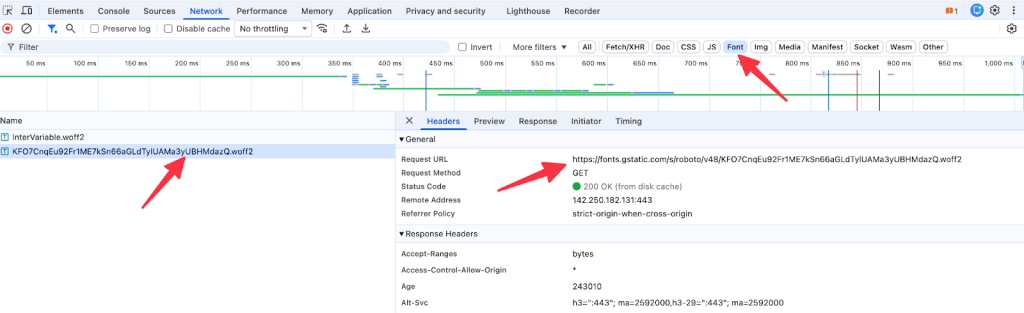
Step 3: Add The Preload Tag
You should never preload every font on your site, only the ones used immediately on the screen (above the fold). To find these, open your website in Chrome, right-click, and select Inspect to open DevTools. Navigate to the Network tab, reload the page, and click the Font filter. Look for the font files that load first and are critical for your main headings or navigation.Once you have the URL, you need to construct the HTML tag. The syntax for this HTML tag must be correct, or the browser will ignore it. The tag should look like this:In this guide, you will learn exactly how to preload fonts in WordPress to remove render-blocking delays and make your text appear instantly.After implementing the above steps, watch out for “double downloads” in your Waterfall chart, where the font loads once as a preload and again via CSS. This is almost always a cross-origin mismatch.Cumulative Layout Shift (CLS) occurs when elements on a page unexpectedly move. It happens in three parts:Suggested read: How To Use Redis Full-Page Caching To Speed Up WordPress<link rel="preconnect" href="https://fonts.googleapis.com">
<link rel="preconnect" href="https://fonts.gstatic.com" crossorigin>
RunCache is a completely free, vendor-independent caching solution that works on any hosting provider. It lets you unify page, object, and edge caching without migrating your site or changing hosts.

Preloading fonts is a powerful way to tell browsers to prioritize typography assets and improve Core Web Vitals. However, frontend optimizations like this work best when backed by a high-performance server environment.
Step 5: If using Google Fonts, add Required Preconnect Hints
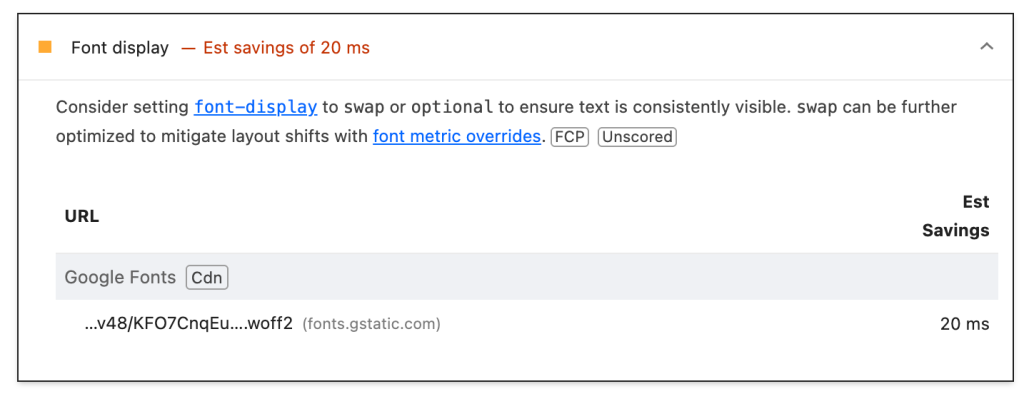
Preloading is a manual override that forces the browser to download the font immediately, skipping the “discovery chain.” However, it is a double-edged sword.Suggested read: How to Easily Fix Leverage Browser Caching Warning in WordPressWarning: After adding this code, you might notice that the changes appear when you are logged in but not when you inspect the site as a visitor. This happens because the server page cache is serving old HTML. Instead of hoping a browser cache clear fixes it, go to your RunCloud dashboard and purge the RunCloud server cache. This ensures the new preloading headers are served to all users immediately.Before adding code, verify that fonts are actually delaying your render time. Run a test on PageSpeed Insights or Google Lighthouse and look at the “Opportunities” section. If you see a warning labeled “Preload key requests,” expanding it will usually list specific font files that are delaying rendering.RunCloud helps reduce Time to First Byte (TTFB) so that when the browser finally requests the font, the server delivers it instantly without lag.
Step 6: Fix Common Mistakes
If fonts are not flagged under “Preload key requests”, this guide is not the correct fix.Before you begin, remember that modifying site headers requires precise caching management. RunCloud’s server-level caching keeps your site fast, but you must clear the cache after applying these changes so visitors see the improvements immediately.This usually occurs if the crossorigin attribute is missing from your preload code, causing the browser to treat the request as two separate assets.
Step 7: Re-test and Verify Improvements
Hover over the file name to see the full URL. You are specifically looking for .woff2 files, as these are the modern standard for compression and performance. Copy the URL of the font file you want to preload. Suggested read: How To Use NGINX FastCGI Cache (RunCache) To Speed Up Your WordPress PerformanceIs your WordPress site failing Core Web Vitals checks despite having optimized images and minified code?Finally, return to PageSpeed Insights and WebPageTest. Look for the specific metrics: Largest Contentful Paint (LCP) should be faster, and Cumulative Layout Shift (CLS) should decrease because the text renders immediately rather than swapping fonts later.If you see “Cache TTL” warnings, you can fix them by using the RunCache plugin for WordPress. It uses intelligent caching rules to speed up a WordPress website without requiring code changes. If purging cache to fix these errors causes load spikes, use RunCloud’s monitoring to correlate the purges with CPU pressure and adjust your settings accordingly.
Troubleshooting: What if Preloading Doesn’t Improve CLS or LCP?
Relying on Google Fonts or Adobe Fonts introduces external variables you cannot control, such as DNS lookups and connection latency to their servers. If their server is slow, your site is slow. Self-hosting the font files (uploading them to your own /wp-content/uploads/ folder) places the control back in your hands.
Minimize Font Variants to Reduce File Size and Load Time
Suggested read: How to Create Custom NGINX Configuration Easily Using RunCloud
- Audit your typography: Check your CSS to see which weights are actually being used on the site.
- Remove unused variants: If your specific theme only uses “Regular (400)” and “Bold (700),” remove all other weights from your request.
- Update the preload tags: Ensure you preload only the single most important variant (usually the body text or main heading weight), not the entire family.
Implement ‘font-display’ Strategies to Prevent Layout Shifts
If you still see inconsistent results where some visitors get fast speeds and others don’t, your edge caching or object caching might be fragmented.
- Use font-display: swap: This tells the browser to display a fallback system font immediately (improving LCP) and swap to your custom font once it downloads. This prevents the “invisible text” phenomenon.
- Use font-display: optional: For maximum speed, this setting tells the browser to use the custom font only if it is already cached or loads instantly. If it takes too long, the browser sticks with the system font for that page view, resulting in zero layout shift.
Preloading changes the order in which files load, but it does not make the files smaller or the server faster.
Self-Host Fonts to Eliminate Third-Party Latency
Before continuing, confirm that text (such as an H1 or hero heading) is identified as the LCP element in PageSpeed Insights or Lighthouse.Suggested read: Cloudflare DNS for RunCloud (Security & Performance)
Wrapping Up
This guide will not improve your Core Web Vitals if your Largest Contentful Paint element is an image, background video, or slider. In those cases, font loading is not the bottleneck, and preloading fonts will have little or no measurable impact.In this case, preconnect is only a partial mitigation, not an equivalent replacement for preloading. It helps reduce connection setup time, but it does not remove third-party latency entirely.The second approach is safer and more manageable. It requires adding a code snippet to your functions.php file, using the wp_head hook, to dynamically inject the link.At that point, ensure you are utilizing RunCloud’s optimized NGINX/Apache configurations.This delay exposes your site to slow server responses. If your hosting environment has a high Time to First Byte (TTFB), the browser waits even longer before starting the font download. If your LCP is good but your CLS is poor, it is likely because the text is “swapping” and changing size after the font loads. You can control this behavior using the font-display property in your CSS @font-face declaration.