Get-Service docker
- Check the Docker CLI: Run the following command to verify that the docker command is available in your system’s PATH.
Suggested read: Self-Hosting Docker vs Cloud-Based Docker
- Legacy .NET Framework apps: Older ASP.NET MVC sites, WCF services, or Windows Services that can’t run in Linux containers.
- Your Application Has Windows-Specific Dependencies: Some applications are deeply woven into the Windows operating system. If your code calls on technologies like Microsoft Message Queue (MSMQ), COM+, relies on assemblies in the Global Assembly Cache (GAC), or interacts directly with the Windows Registry in complex ways, then you will need a Windows environment to function.
- Your Company Runs on Windows: Corporate policy and existing infrastructure are powerful forces. If all your servers are Windows-based, then your monitoring tools would be optimized for it, your security policies would be built around Active Directory, and your entire team’s expertise would lie in managing a Windows environment. In this scenario, introducing a few Linux servers adds significant operational overhead.
- You need a Windows CI/CD Build Agent: A Windows environment is required to build and package Windows applications. You cannot compile a WPF desktop application, run MSBuild for a full .NET solution, or create a Windows Installer (.msi) package on a Linux build agent. A containerized Windows build agent gives you a clean, repeatable, and isolated environment for every single build.
Windows Server can run both Windows and Linux containers, but you must choose the right one for your app. Pick Windows containers for .NET Framework or Windows-specific APIs. Use Linux containers for standard web stacks like NGINX, Node.js, Python, and databases.
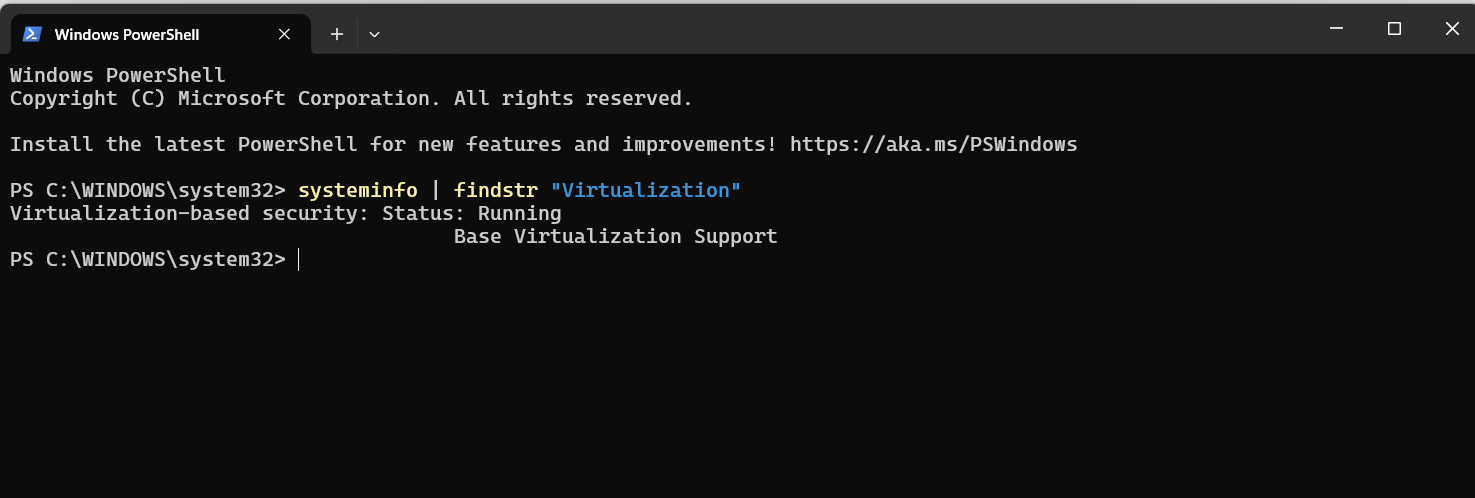
You need to verify that virtualization support (often referred to as Intel VT-x or AMD-V) is enabled in the server’s BIOS or UEFI. The easiest way to check this from within Windows is to run a simple PowerShell command.
Table of Contents
Section 1: System Requirements & Hypervisor Check
Although Linux remains the easier and more efficient platform for most containers, Windows Server still plays a major role in many production environments. If your applications, tooling, or infrastructure tie you to Windows, mastering Docker on Windows Server becomes a practical requirement.
If Your Server is a Physical Machine:
In your elevated PowerShell window, run the following commands one by one:Before you can install the Docker Engine, you must first enable the underlying features in the Windows operating system that support containerization and virtualization.Create your free RunCloud account and deploy your next container the simple way.
If Your Server is a Virtual Machine (VM):
This setting is not configured inside your Windows Server VM. You must configure it from the management interface of the host hypervisor that is running your VM.These are native Windows containers. They run directly on your server, sharing the host’s Windows kernel, which makes them highly efficient and start quickly. Think of them as highly isolated Windows processes that have their own filesystem and registry, but fundamentally speak “Windows.”
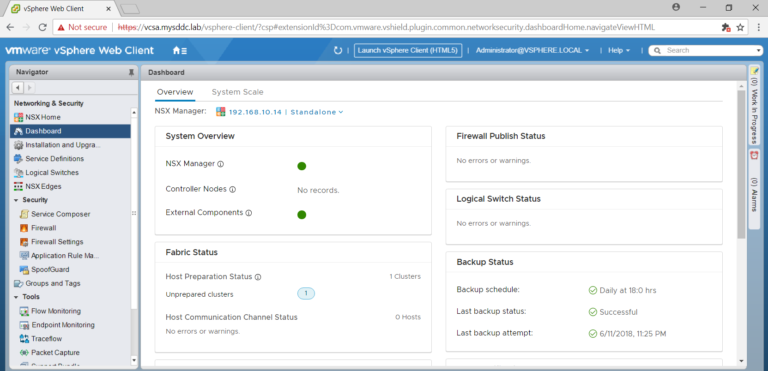
- For VMware ESXi/vSphere: Shut down the VM. Edit the VM’s settings, expand the CPU section, and check the box for “Expose hardware-assisted virtualization to the guest OS.”
- For Microsoft Hyper-V: Shut down the VM. Open a PowerShell prompt on the Hyper-V host (not the guest VM) and run the command: Set-VMProcessor -VMName “Your-VM-Name” -ExposeVirtualizationExtensions $true.
Section 2: Install Latest Windows Updates
After your server has restarted, open another elevated PowerShell window. You will now use Microsoft’s DockerMsftProvider module to find and install the Docker Engine directly from a trusted repository.systeminfo | findstr "Virtualization"
# Installs the core Windows Containers feature

Install-WindowsFeature -Name Containers

# Installs the Hyper-V role. This is best practice for security and compatibility.

Install-WindowsFeature -Name Hyper-V
docker info
Post-Installation Configuration
Check that you’re running a supported 64-bit Windows Server version (2016, 2019, or 2022). Then confirm CPU virtualization is enabled. How you check this depends on whether you are on bare metal or a virtual machine.You might be working with Windows containers because:
- Web servers like NGINX or Apache.
- Applications written in Python, Node.js, Ruby, or Go.
- Databases like PostgreSQL, MySQL, or Redis.
- Essentially, any application you would normally find on Docker Hub that is not explicitly for Windows.
3. Installation Guide: Using PowerShell
Docker on Windows solves specific use cases, but most modern stacks run faster and more reliably on Linux. If you want that performance without managing Linux manually, RunCloud gives you a clean dashboard for deploying and managing Linux servers with ease.With RunCloud, you get:
Step 1: Enable Required Windows Features
If you’re using Windows Server only because Linux feels unfamiliar, you don’t need to avoid it. RunCloud provides an intuitive dashboard for managing fast and secure Linux servers without requiring complex command-line knowledge.Open an elevated PowerShell prompt and run the following command:When you want to run a standard Linux container (like one for NGINX, Python, or Node.js), Docker on Windows cleverly uses virtualization to run a tiny, purpose-built Linux virtual machine in the background. Your Linux containers run inside this hidden VM, not directly on the Windows kernel.
Step 2: Install the Docker Engine on Windows
Run these two commands:Prepare your server for a successful installation by getting it completely up to date.Explore How RunCloud Simplifies Linux Hosting →
Step 3: Post-Install Verification
If your server runs inside a VM, you must enable nested virtualization on the host. Docker cannot run inside a VM without it.
- Check the Docker Service: The Docker Engine runs as a Windows service. Run the following command to verify it. You should see the Status listed as Running.
In this guide, we’ll explain how to install Docker on Windows Server. By the end of this article, you will be able to install it and run containers without any help.
- Get Detailed Information: The ‘docker info’ command provides a comprehensive overview of your installation.
Unlike a simple application, the Docker Engine integrates deeply with the Windows kernel. Microsoft regularly releases critical bug fixes, performance improvements, and even new container features directly through Windows Updates. By skipping updates, you are likely to encounter strange bugs, networking issues, or outright installation failures that the Windows engineering teams have already resolved.
- Create the Config File: Create a file named daemon.json inside the
C:ProgramDatadockerconfigdirectory. You will need to create the config folder yourself if it does not exist. - Move the Docker Data Directory: To prevent filling your C: drive, add the following to your
daemon.json:"data-root": "D:Docker". This moves all images, volumes, and container data to the specified path on yourD:drive. - Set up a Registry Mirror: To speed up image pulls for docker pull, configure a local mirror. Add
"registry-mirrors": ["https://your.registry-mirror.url"]to prioritize pulling from your faster, local cache. - Grant Access to Non-Admins: To allow standard users to run Docker commands, add the following to the configuration:
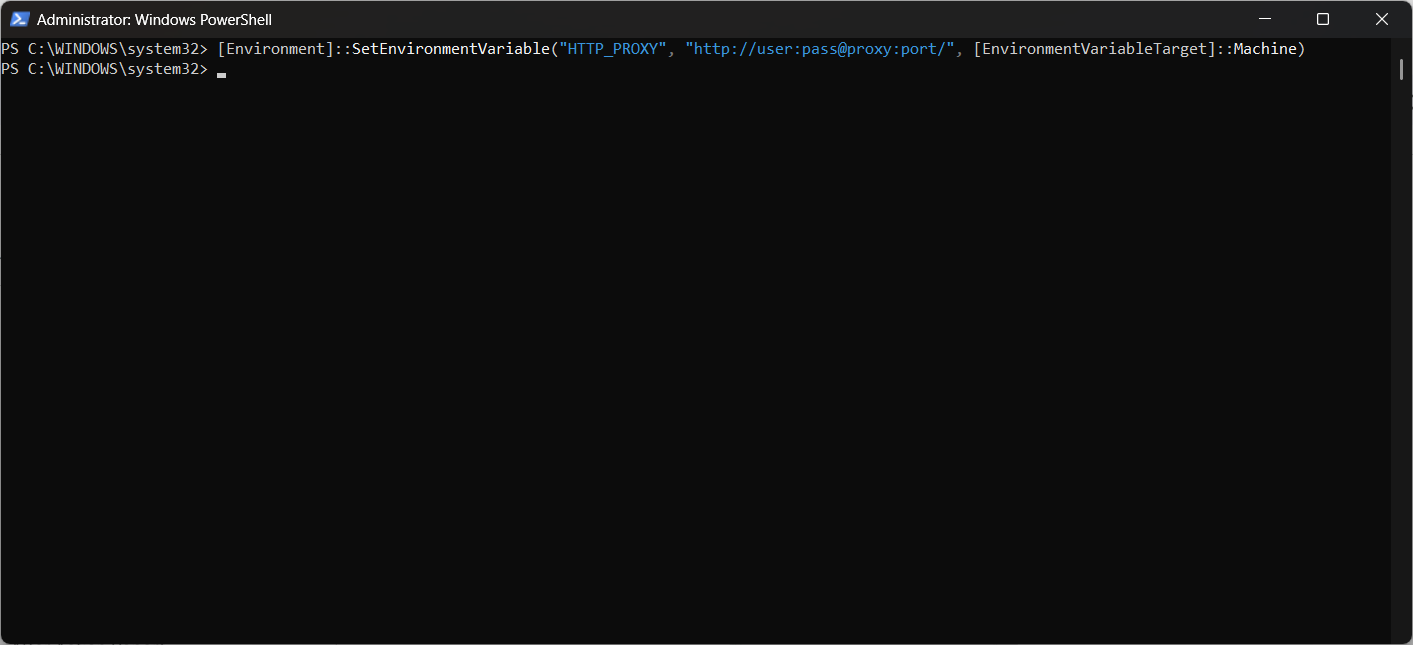
"group": "docker". This gives members of the local Docker security group access to the Docker engine. - Set a Network Proxy: To use Docker behind a corporate proxy, you must set an environment variable. Use PowerShell to run
[Environment]::SetEnvironmentVariable("HTTP_PROXY", "http://user:pass@proxy:port/", [EnvironmentVariableTarget]::Machine).
- Run a Test Container: After configuring and restarting the Docker service, always confirm it’s working correctly. Run
docker run mcr.microsoft.com/windows/nanoserver:ltsc2022 powershell -Command "echo Hello from your configured container!"to verify it works correctly.
A good DevOps engineer knows that a successful deployment is 90% preparation. Before you type a single installation command, verify that your environment is properly set up.
After Action Report
If you’re ready to run Docker with fewer constraints and better performance, try hosting your containers on a fast Linux server managed through RunCloud’s easy dashboard.Once your server is back online, it’s time to confirm that everything is working as expected. Open a new elevated PowerShell window and run these checks.
- Rock-Solid Security: RunCloud automates complex security configurations, so your server is hardened and protected from the start.
- Total Flexibility: It works with any cloud provider (e.g., AWS, DigitalOcean, Vultr) or even a server in your own home. You never get locked into a single provider.
- Complete Control: You always retain full root access and complete control of your server; RunCloud is your co-pilot, not a black box.
To manage a Windows Server effectively, you need to embrace automation and scripting. For the entire installation, we will use PowerShell for all tasks. It’s repeatable, less prone to human error, and the professional way to configure your servers.# Installs the PowerShell module that knows how to find and install Docker
Install-Module -Name DockerMsftProvider -Repository PSGallery -Force
# Uses the module to install the latest validated version of Docker Engine
Install-Package -Name docker -ProviderName DockerMsftProvider
You will be asked to trust the repository; type A (for “Yes to All”) and press Enter to proceed.