When a support agent or a developer asks you to “refresh” a page, it can be confusing to know exactly what they mean. There is a big difference between a standard reload, a hard refresh, and a full cache clear.
Note: You do not do this inside the Safari app itself.Cookies are often used for tracking. Have you ever looked at a pair of shoes online, and then seen ads for those exact shoes on every other website you visit for a week? That is the work of third-party tracking cookies. Clearing your cookies removes these trackers, preventing advertisers from tracking your digital footprint across the web.
Table of Contents
- 1 What are Browser Cache & Cookies?
- 2 Why Clearing Cache & Cookies Is Useful
- 3 How to Clear Cache & Cookies in Major Browsers
- 4 Hard Refresh vs Full Cache Clear – What’s the Difference?
- 5 Why CDN Cache Often Causes Confusion
- 6 The Correct Cache Clearing Order
- 7 Wrapping Up
- 8 FAQs on Cache & Cookies
- 8.1 Does clearing the cache delete passwords or saved logins?
- 8.2 Will I lose browsing history if I clear the cache?
- 8.3 How often should I clear cache & cookies?
- 8.4 Does clearing cookies affect site preferences or saved settings?
- 8.5 Is there a shortcut to clear the cache?
- 8.6 What’s the difference between cache and cookies?
- 8.7 Does using private/incognito mode avoid caching issues?
What are Browser Cache & Cookies?
Yes, clearing cookies will sign you out of most websites and reset user-specific preferences, such as language settings or shopping cart items. If this keeps happening on your site, the problem is not the browser. It is server-side caching.On Mac:
- You are a visitor, and the website looks broken or outdated
- You own or manage a website, and changes are not showing for users
Cookies are small text files that websites save to your browser to remember you. Without cookies, the internet would have no memory. If you logged into Facebook and then refreshed the page, you’d be logged out immediately because the site wouldn’t recognize you. While cache only saves the data to speed up the site, cookies provide several useful functionalities, such as:Here are some of the common problems an individual user can fix by clearing browser cache and cookies:This means:On Mobile (Android/iOS):
- Does the issue affect only you, or multiple users?
- Does the issue disappear in Incognito or Private mode?
- Did you recently update content, CSS, or a plugin?
RunCache eliminates the need for disjointed plugins and manual configuration by offering a unified approach to Page, Object, and Edge caching. It ensures that when you update your content, your server intelligently purges the old versions instantly.
What is Browser Cache?
If you are fixing a one-off display issue, clearing browser data can help.This guide covers two very different situations.To understand them, think of your web browser (like Chrome, Safari, or Edge) as a very organized backpack that helps make your trip across the internet easier.
What are Browser Cookies?
Cache is your browser’s short-term memory. When you visit a website, your computer has to download many assets to display it properly. For example, a modern website usually needs logos, background images, fonts, and large code files.
- Authentication: Keeping you logged in as you move from page to page.
- Preferences: Remembering that you prefer “Dark Mode” or English language settings.
- Shopping Carts: Remembering what you put in your basket while you continue shopping.
While cache is designed to speed up browsing, having gigabytes of old files stored on your hard drive can eventually slow down your browser itself. It’s like a filing cabinet that is too full; it takes longer to find what you need.
Why Clearing Cache & Cookies Is Useful
Developers are constantly updating websites. If a website owner changes a photo or a piece of code, but your browser loads an outdated local copy, the site might look broken for you even though it is correct for everyone else. Buttons might be missing, or formatting might look weird. Clearing the cache forces your browser to download the newest, correct version of the site.💡 Pro Tip for Site Owners:
Do your visitors constantly have to perform a Hard Refresh to see your latest content? That is a sign of server-side cache configuration issues, not user error.
- Fix “Glitchy” Websites
Suggested read: How To Use Redis Full-Page Caching To Speed Up WordPress
- Protect Your Privacy
If your site uses a CDN, outdated content is rarely a browser problem. It is almost always a cache purge issue upstream.
- It Resolves Login Conflicts
Suggested read: How to Reduce Cache Misses & Avoid Them: Proven Tips [FIXED]
- It Speeds Up Your Computer
In this post, we will help you identify why changes are not showing and fix the right problem.Clearing the browser cache first treats the symptom, not the cause. If the issue is server-side, it will persist no matter how many times users refresh.
How to Clear Cache & Cookies in Major Browsers
Content Delivery Networks sit between your server and the browser. They cache full pages and assets at edge locations around the world.
How to Clear Cache & Cookies in Google Chrome (Desktop + Mobile)
RunCloud solves this by managing server-side caching (like NGINX and Redis) for you. With RunCache, you can ensure updates appear instantly for everyone, saving your users the hassle of troubleshooting your site.
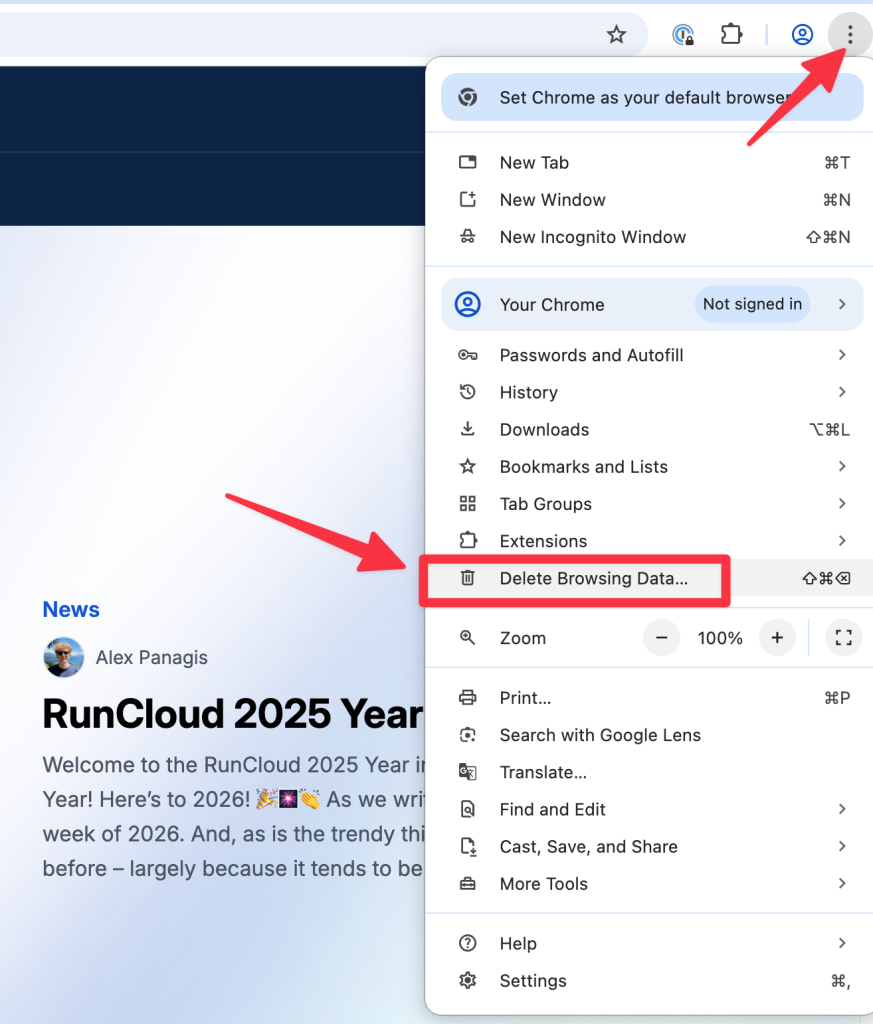
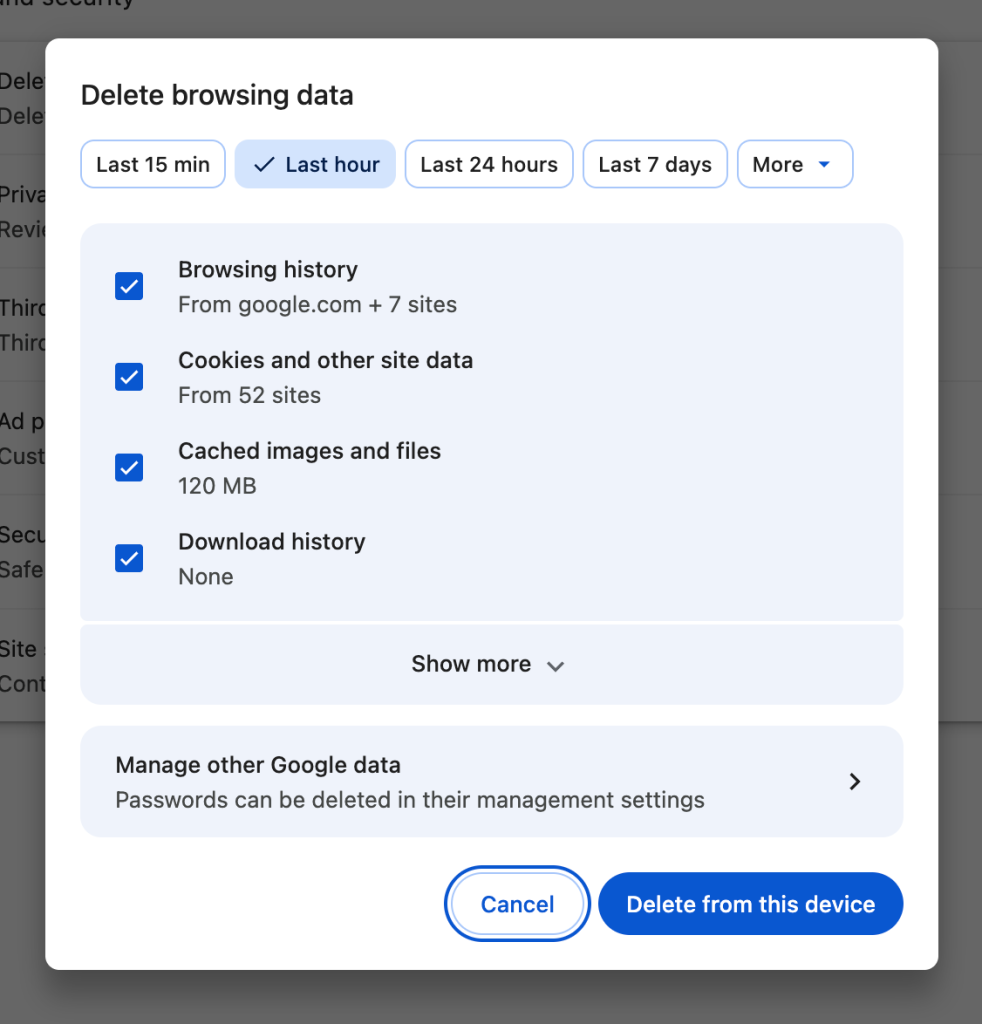
- Open the Menu: Click the three vertical dots in the top-right corner of the browser window and select Delete browsing data. You can also press Ctrl + Shift + Delete (Windows) or Cmd + Shift + Delete (Mac) on your keyboard.
Suggested read: Everything You Need To Know About WordPress Object Caching
- Choose Your Settings: A pop-up window will appear.
- Time range: Select “All time” to ensure a complete cleanup.
- Checkboxes: Ensure “Cookies and other site data” and “Cached images and files” are selected.
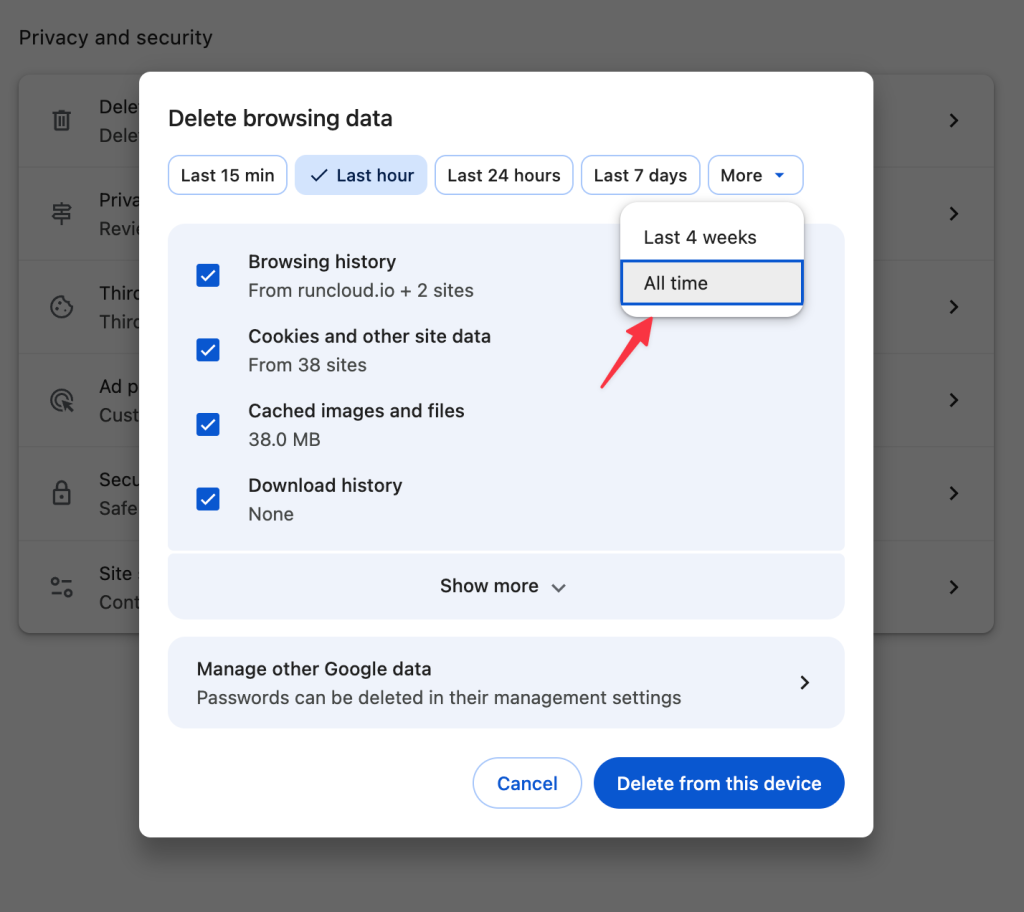
- Finish: Click Delete from this device.
If you recently changed your password but your browser is still holding an old cookie with your old credentials, you might get stuck in a “login loop” where the site refuses to let you in. Clearing cookies removes that outdated “ID badge,” forcing the site to issue you a new, working session.
- Open the Chrome app and tap the Menu (three dots).
- Tap History, then select Delete browsing data.
- Choose your time range (usually “All time”) and make sure “Cookies” and “Cached images” are checked.
- Tap Delete data.
Most major browsers let you quickly access the Clear Data menu by pressing Ctrl + Shift + Delete (Windows) or Cmd + Shift + Delete (Mac). Just as these shortcuts save users time for local troubleshooting, RunCloud offers the RunCloud Hub to clear server-side cache instantly with a single click from the WordPress dashboard.
How to Clear Cache & Cookies in Mozilla Firefox (Desktop + Mobile)
If the problem affects only you, browser cache is likely the cause. If multiple users see old content, browser cache is not the issue, and clearing it will not fix the problem.
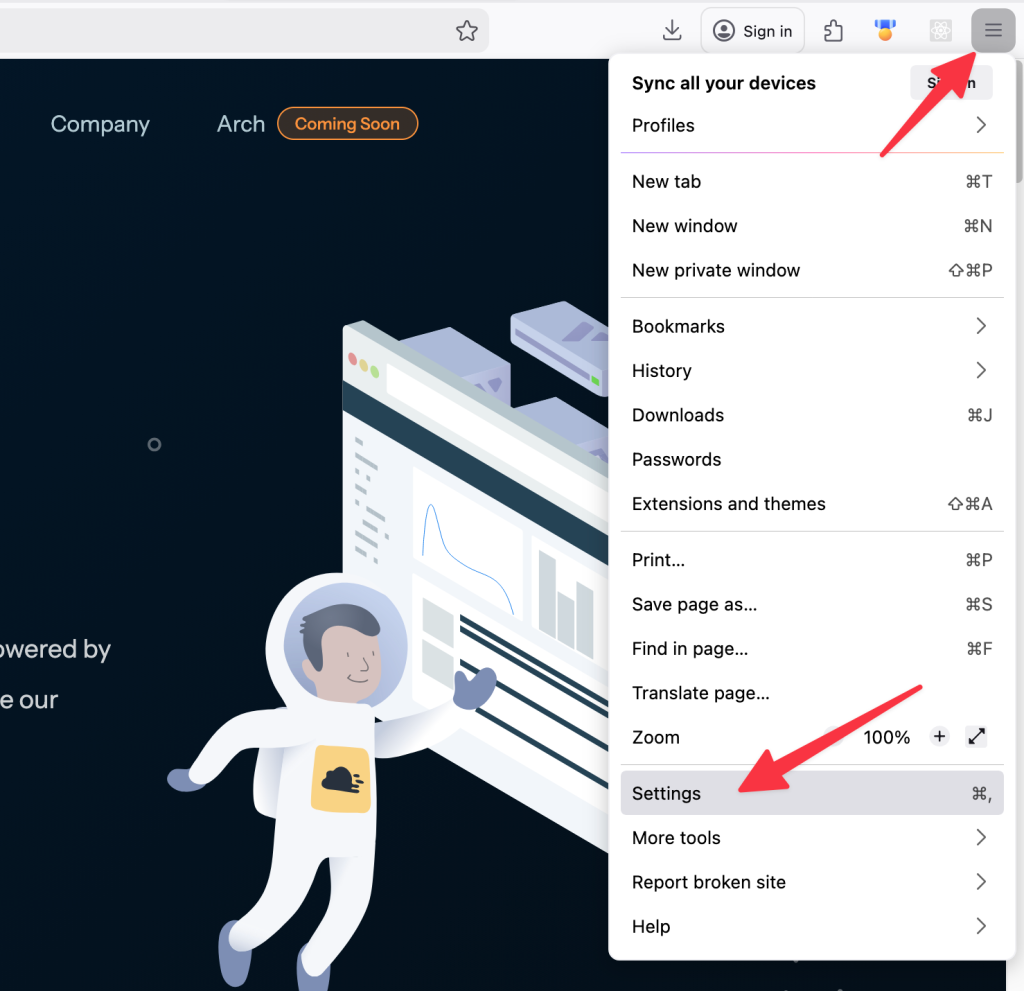
- Open Settings: Click the hamburger menu (three horizontal lines) in the top-right corner, then select Settings.
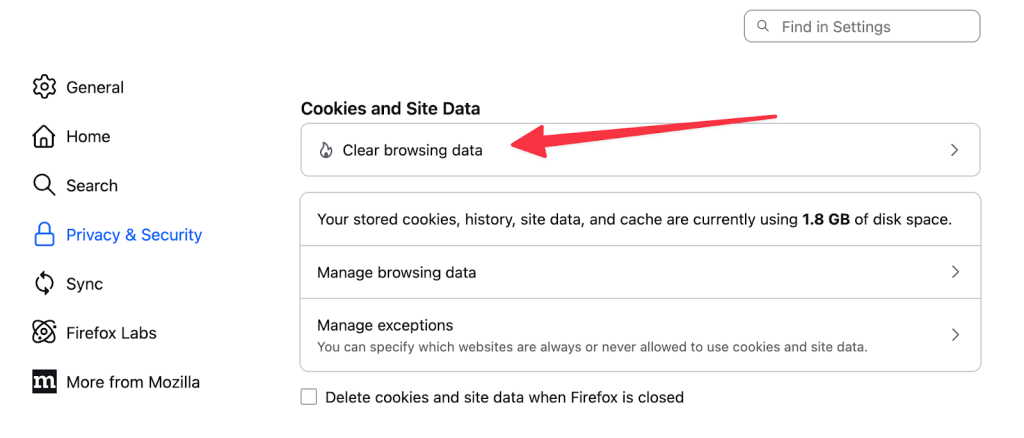
- Privacy & Security: On the left sidebar, click Privacy & Security. Find the section labeled Cookies and Site Data and click the Clear Browsing Data button.
- Select & Clear: Check both boxes (“Cookies and Site Data” and “Temporary cached files and pages”) and click Clear.
Since cache speeds things up and cookies make things more convenient, it might seem counterintuitive to delete them. Over time, these files can become outdated or corrupted, or simply accumulate, until they interfere with your browsing experience.
- Tap the Menu button (three lines or dots, depending on your device placement).
- Tap Settings and scroll down to Privacy.
- Tap Delete browsing data (on Android) or Data Management (on iOS).
- Toggle the switches for Cache and Cookies, then tap the delete button.
How to Clear Cache & Cookies in Safari (Mac + iOS)
Understanding the mechanics of browser cache and cookies is important for anyone using the web. For the average internet user, these troubleshooting steps are helpful tricks to keep in their back pocket. But if you are a website owner or developer, relying on your visitors to clear their cache is a bad strategy.
- Top Menu: In the menu bar at the very top of your screen, click the word Safari.
- Clear History: Select Clear History… from the dropdown menu.
- Confirm: A pop-up will ask for a timeframe. Select “all history” and click Clear History.

Cache consists of temporary files (such as images and HTML) stored to speed up page loading, whereas cookies are small text files that store user data, such as login status and tracking preferences.
- Open your device’s main Settings app (the gear icon).
- Scroll down and tap on Safari.
- Scroll down again and tap the blue text that says Clear History and Website Data.
- Confirm your choice. This will refresh Safari and log you out of websites.
This guide explains both situations and how to identify the real cause.
Hard Refresh vs Full Cache Clear – What’s the Difference?
Instead of expecting visitors to troubleshoot your site, you can eliminate the problem at the source with RunCache by RunCloud.
| Feature | Hard Refresh | Full Cache Clear |
| What it is | It is a command that tells the browser to ignore the cache for the current page only. | It is a browser setting that permanently wipes temporary files and data from all websites. |
| Scope | Affects only the single URL you are currently viewing. | Affects your entire browsing history and every site you have visited. |
| Impact on Login | Safe: You stay logged in. It does not delete cookies. | Destructive: You will be signed out of most accounts (Gmail, Facebook, etc.) if you clear your cookies. |
| When to use | When a page looks “broken,” formatting is weird, or new content isn’t showing up. | When a hard refresh fails, you have privacy concerns (tracking), or multiple sites are acting up. |
| How to do it (Win) | Ctrl + F5 | Ctrl + Shift + Delete (opens settings) |
| How to do it (Mac) | Cmd + Shift + R | Cmd + Shift + Delete (opens settings) |
Why CDN Cache Often Causes Confusion
Before you clear anything, answer these questions:If you spend any time on the internet, you’ve likely heard the advice to “clear your cache and cookies” whenever something goes wrong. But what exactly are these things, and why is your browser storing them in the first place?When changes are not showing, clear the cache in this order:
- Clearing the browser cache may do nothing
- Hard refresh may still show old content
- Only purging the CDN cache fixes the issue
On Desktop (Windows/Mac):
If you had to re-download every single logo and image every time you clicked a new page on the same site, browsing would be painfully slow. Instead, your browser saves (caches) these files on your hard drive. The next time you visit that site, the browser says, “I already have these images!” and loads them instantly from your computer rather than downloading them again. This significantly reduces load times and saves data.Create a test site with RunCache in less than 3 seconds (no credit card required).
The Correct Cache Clearing Order
Yes, using Incognito or Private mode prevents the browser from saving local cache or cookies, allowing you to view a website as if you were a new visitor. This is a great way to debug issues, but for a permanent fix, RunCloud allows you to manage and purge server-level cache to ensure all users see the correct version of your site without needing private windows.
- Server cache
- CDN or edge cache
- Application or plugin cache
- Browser cache
At this point, many people assume the browser is still responsible. In reality, the browser is often the last place the problem exists.
Wrapping Up
Suggested read: The Best WordPress Caching Plugins To Speed Up Your Site If you search the internet, you will hear about hard refreshes, incognito mode, and temporary files. But all of this is overwhelming, especially when you just want to run your business and ensure your customers see your latest content, not a broken layout.On Mobile:In some cases, clearing browser data is enough. In others, it will never work. Before jumping into step-by-step fixes, you need to know which situation you are dealing with.“Browser cache” and “cookies” can be confusing terms. If you have ever built a website, updated a page, and still seen the old data, you know the frustration. On Desktop:
FAQs on Cache & Cookies
Does clearing the cache delete passwords or saved logins?
Will I lose browsing history if I clear the cache?
Is there a shortcut to clear the cache?
 Suggested read: Server Cache vs. Browser Cache vs. Site Cache: What’s the Difference?