systemctl status, journalctl, and systemd-analyze are 100% safe. They are “read-only.” However, be careful with sudo systemctl stop. If you stop a service like dbus or systemd-logind, your screen might freeze or you might get logged out!We’ve all heard it: “Have you tried restarting it?” Restart a service in Linux with systemctl.Unlike old-school Linux logs (which were scattered across dozens of text files), systemd keeps everything in one central, encrypted location.
Table of Contents
1. Systemctl
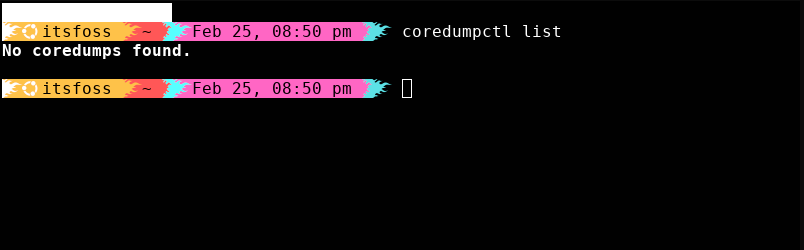
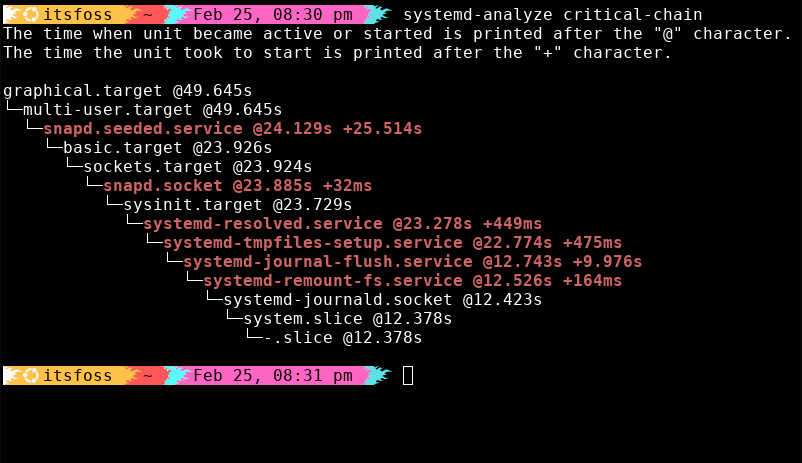
Some distributions (like minimal Debian installs) might not have coredumpctl installed by default. You can usually get it by running sudo apt install systemd-coredump.systemd-analyze critical-chain
Additionally, some apps can’t start until other apps are finished. If App A waits for App B, it creates a chain.
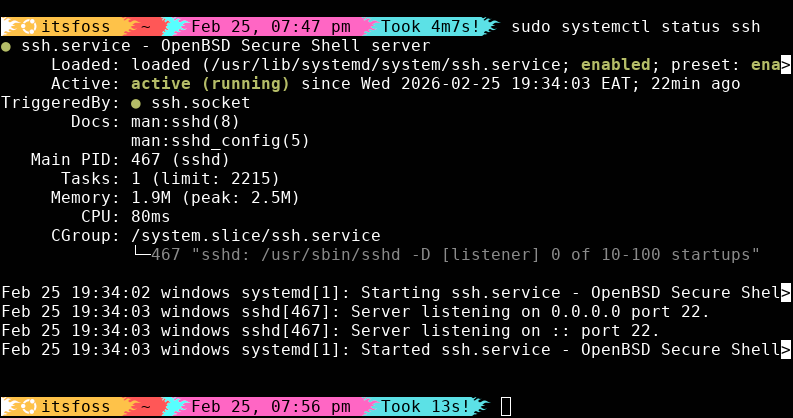
- Active (running): Everything is great!
- Inactive (dead): The service is off. Maybe it crashed, or maybe you never turned it on.
- Failed: This is the red flag. systemd will usually give you a “Main PID” (Process ID) and a reason for the failure right there in the terminal.
The “turn it off and on again” trick
In Linux, background apps are called services. If your system is not accepting SSH connections, you use systemctl to see what’s happening under the hood.
- Kickstart a failed one:
sudo systemctl start ssh - Stop a lagging service:
sudo systemctl stop ssh - Reset:
sudo systemctl restart ssh - Disable a service (to speed up boot):
sudo systemctl disable ssh
2. Journalctl
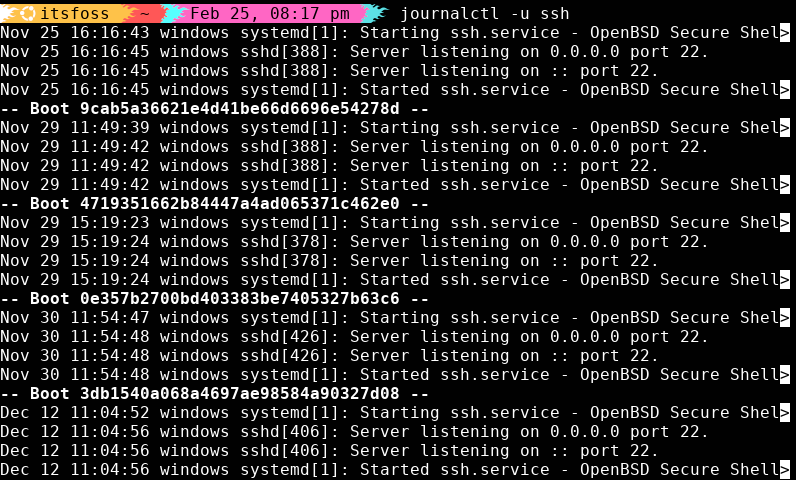
When an app crashes, it doesn’t just vanish. It usually screams an error message into the void. Journalctl is the tool that catches those screams and saves them in a “journal” for you to read later.If you’ve spent any time in the Linux community, you know that systemd is a hot topic. Some people love it because it handles everything; others wish it didn’t! But here’s the reality: almost every major Linux distribution (like Ubuntu, Fedora, and Debian) uses it today.
Filtering the noise
To see a table of every app that has crashed on your system recently, use:💡systemd-analyze blame
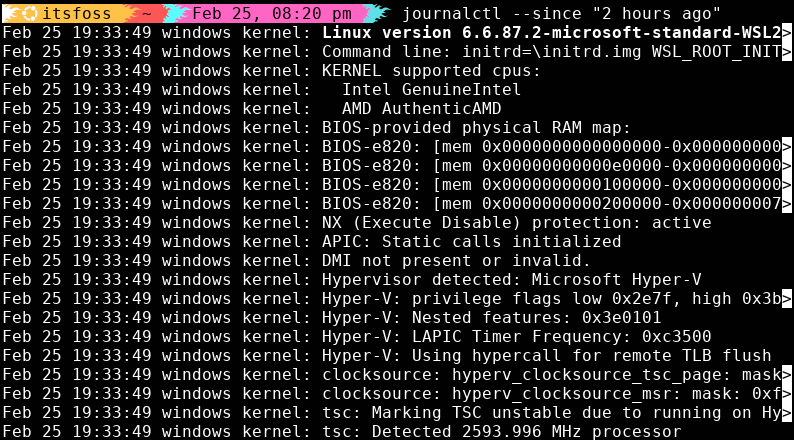
Coredumpctl is like a forensic investigator. It lets you look at that memory “snapshot” to see what the app was doing right before it died.journalctl --since "2 hours ago"
3. Systemd-analyze
coredumpctl list
The “Detective Report”
journalctl -u ssh
But where to find those answers? systemd has built-in tools that help you troubleshoot issues with your system. If you’re just starting your Linux journey, I recommend exploring the following four tools.
sudo systemctl status ssh
I mean, before you try to fix something, you need to know if it’s actually broken.
4. Coredumpctl
coredumpctl info [PID]
Next time something feels “off” on your Linux machine, don’t panic. Just remember: systemctl for the status, journalctl for the logs, systemd-analyze for the speed, and coredumpctl for the crash.
Listing the crashes
By using these systemd tools, you’ve moved past the “I’ll just reboot and hope for the best” stage. You can now see the status of your apps, read their logs, speed up your boot time, and investigate crashes like a seasoned Linux user.journalctl -xe
- -x: Adds “catalog” info (it explains the errors in plain English).
- -e: Jumps straight to the end of the log so you see the newest stuff first.
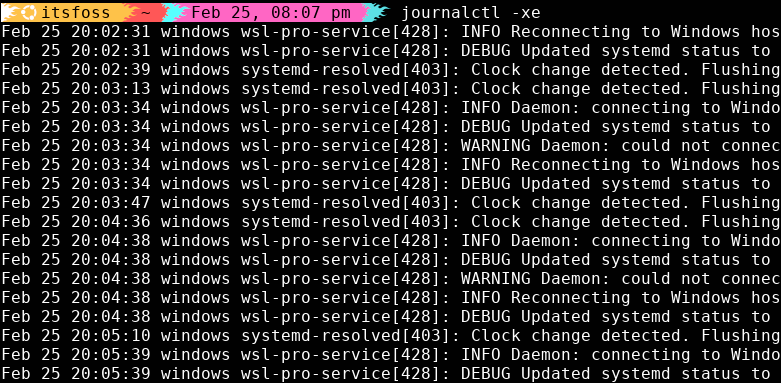
Run this command to see a ranked list of the slowest-starting apps:
Conclusion
If you just type journalctl, you’ll see thousands of lines of code, most of it is boring stuff like “System time updated.” To be a good detective, you need to filter:Sometimes, an app doesn’t just have an error, it crashes completely. In programmer terms, it “dumped its core.” This means the app threw its entire memory onto the floor and quit.