Before deploying VCF, you should download the required binaries to the VCF installer appliance.
This can be done by any of the below three ways:
- If the VCF Installer appliance can connect to the internet (either directly or through a proxy server), you can connect it to an online depot and download the binaries using a download token generated from the Broadcom Support Portal.
- If the VCF Installer appliance cannot connect to the internet, you can connect to an offline depot web server.
- If you cannot connect the VCF Installer appliance to an online or offline depot, use the VMware Cloud Foundation Download Tool to download binaries to a computer with access to the internet and then upload them to the VCF Installer appliance.
Note that you can connect the VCF installer to one depot type (online/offline) only.
In my VCF 9 lab deployment series, I will be using the 3rd option to download the required binaries to the VCF installer appliance.
Step 1: Download the core VCF binaries from the Broadcom support portal
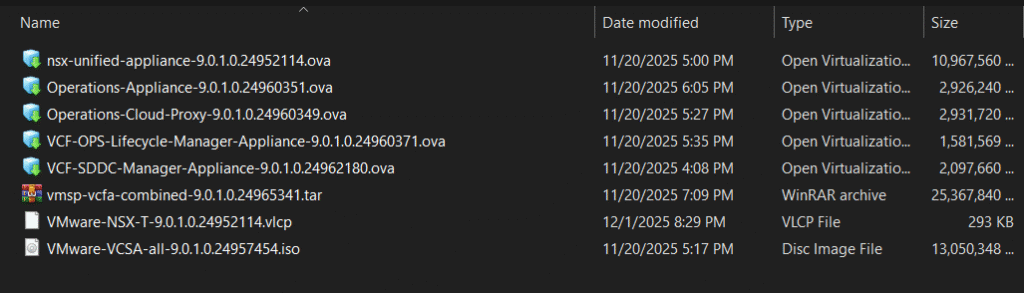
Here under are the core required VCF binaries:
- VMware Cloud Foundation Automation
- VMware NSX
- VMware Cloud Foundation Operations
- VMware Cloud Foundation Operations fleet management
- VMware Cloud Foundation Operations collector
- VMware vCenter
- SDDC Manager
First you need to manually download these binaries for VCF 9.0.1 from Broadcom support portal.
https://support.broadcom.com/group/ecx/productfiles?subFamily=VMware%20Cloud%20Foundation&displayGroup=VMware%20Cloud%20Foundation%209&release=9.0.1.0&os=&servicePk=534266&language=EN
Step 2: Download & Extract the VCF Offline Depot Metadata
Now you need to download the VCF offline depot metadata. This is needed in case you are unable to utilize a software download token for installations and upgrades.
https://support.broadcom.com/group/ecx/productfiles?displayGroup=VMware%20Cloud%20Foundation%209&release=9.0.1.0&os=&servicePk=534266&language=EN&groupId=534924&viewGroup=true
Extract the vcf-9.0.1.0-offline-depot-metadata.zip file which contains the folder structure for setting up VCF Offline Depot along with the required metadata files for VCF 9.0.1.
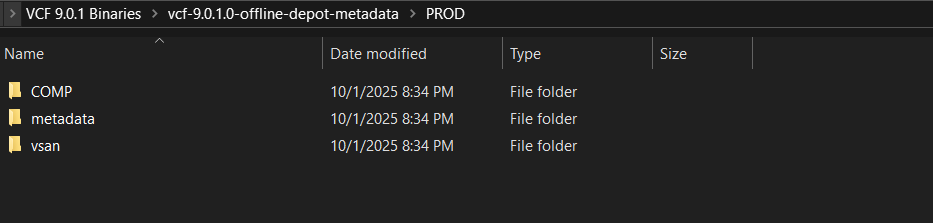
Step 3: Create the folder structure and Copy VCF binaries
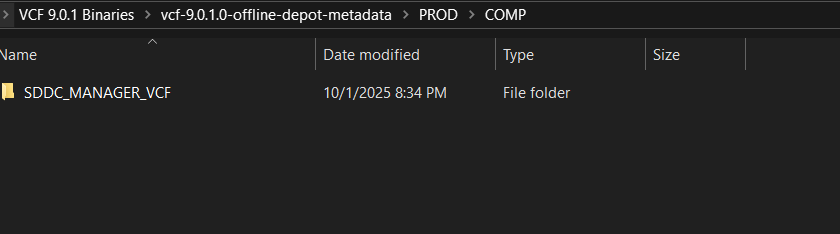
Navigate to the PROD/COMP folder and you will see a subfolder already created for the SDDC Manager. We need to create additional subfolders with the below specified names for the other VCF components as per the below.
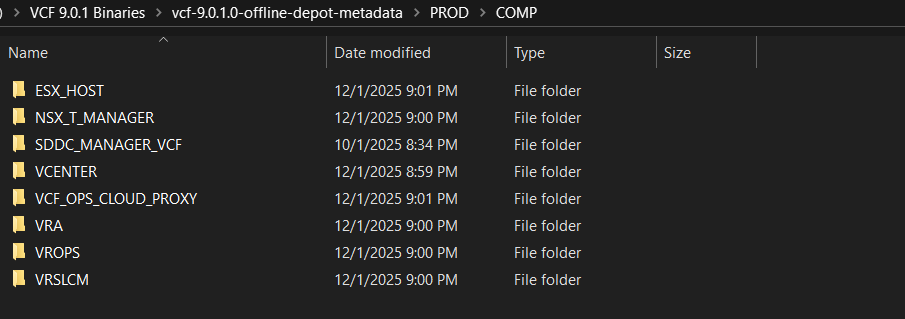
Now we need to place the VCF binaries in their corresponding subfolders. The PROD folder and all subfolders and files will then appear as in the below.
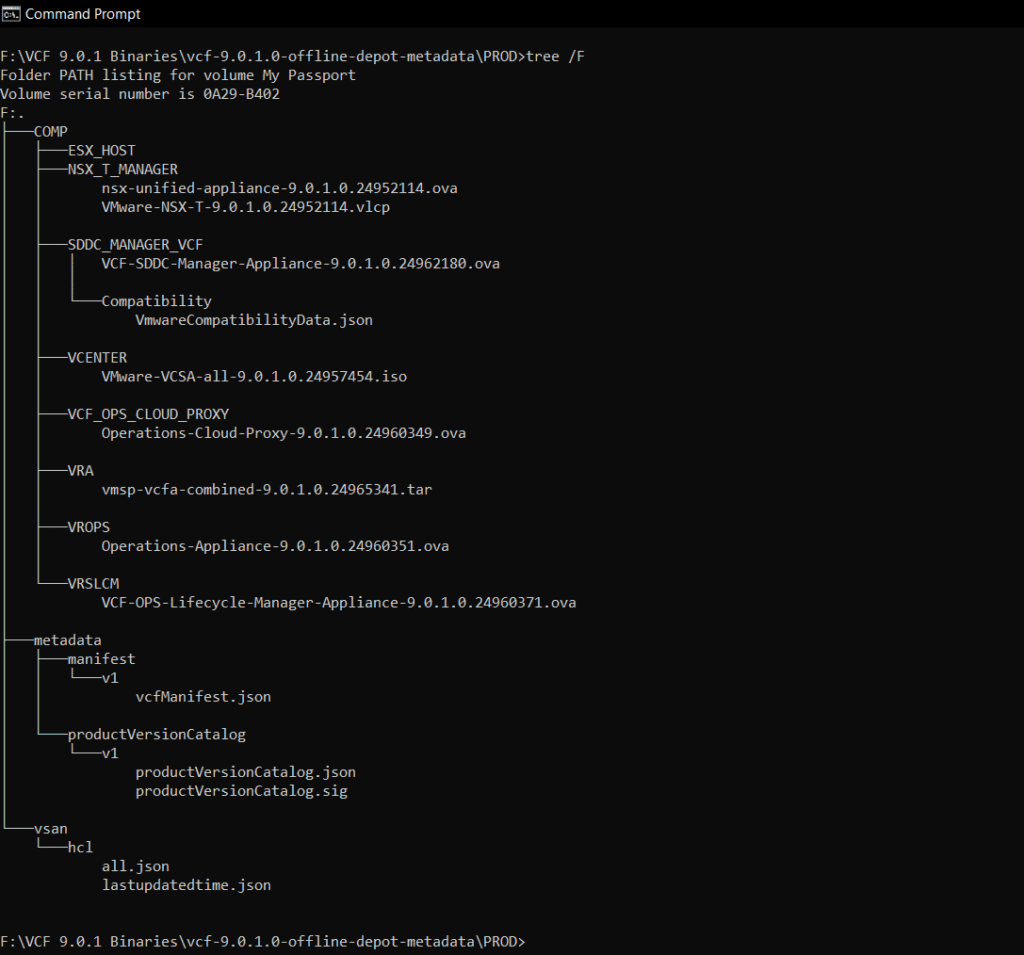
Step 4: Copy the entire PROD directory to the VCF Installer Appliance
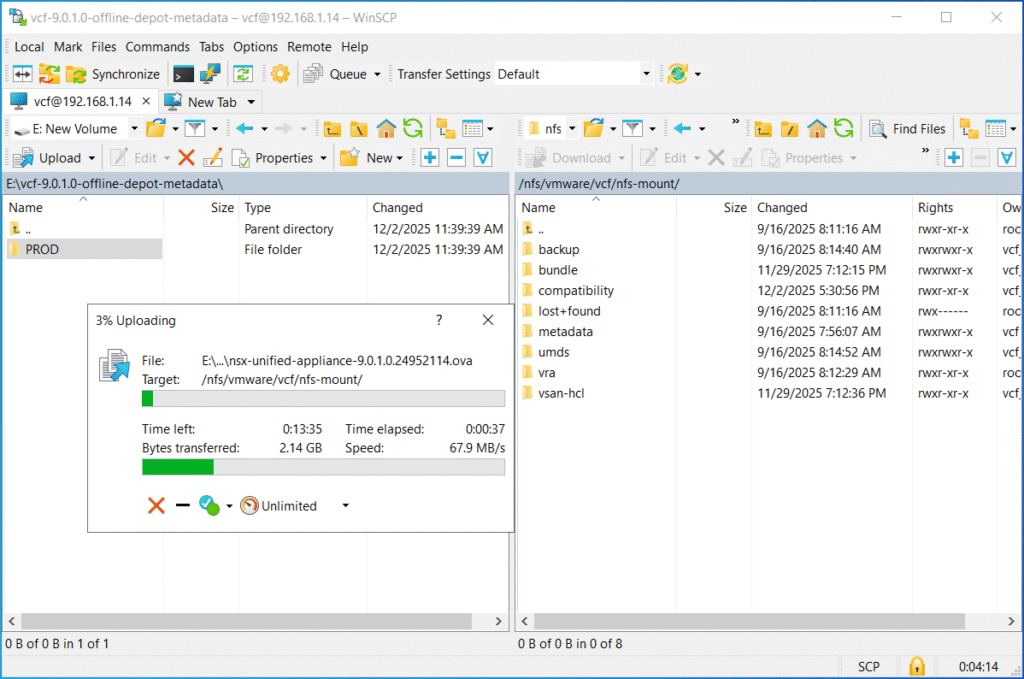
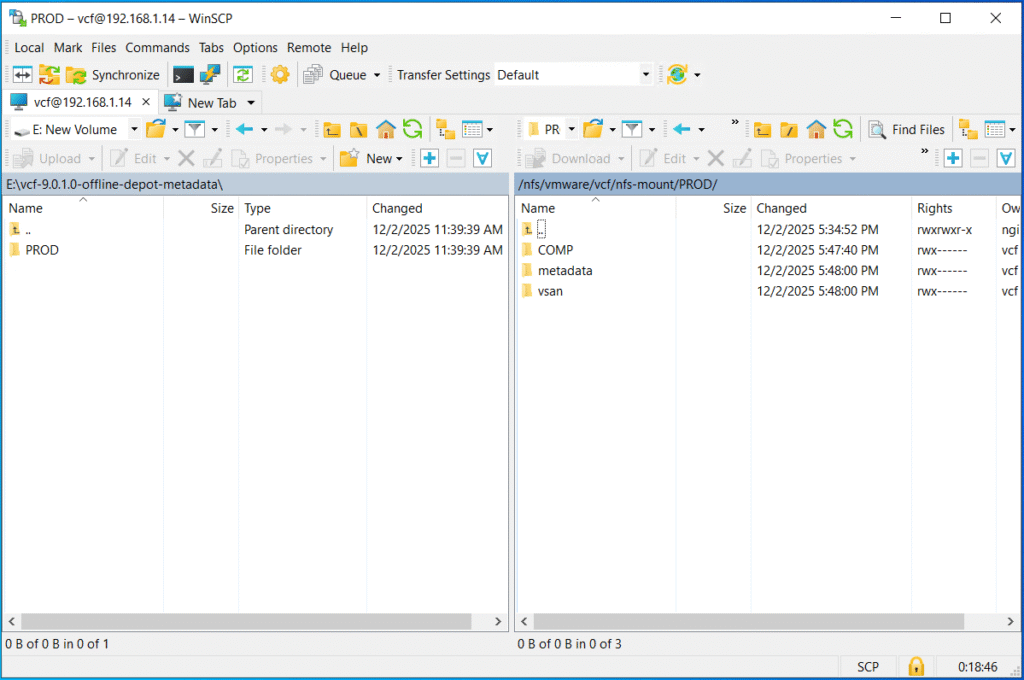
Now you need to transfer the PROD directory to the VCF installer appliance (for example using WinSCP tool). You can select any location on the VCF Installer appliance that has enough free space available. In my case, I will be choosing /nfs/vmware/vcf/nfs-mount/.
Step 5: Download the VCF Download Tool and transfer it to the VCF Installer Appliance
At this stage, you need to download the VCF Download Tool from Broadcom Support Portal.
https://support.broadcom.com/group/ecx/productfiles?displayGroup=VMware%20Cloud%20Foundation%209&release=9.0.1.0&os=&servicePk=534266&language=EN&groupId=534924&viewGroup=true

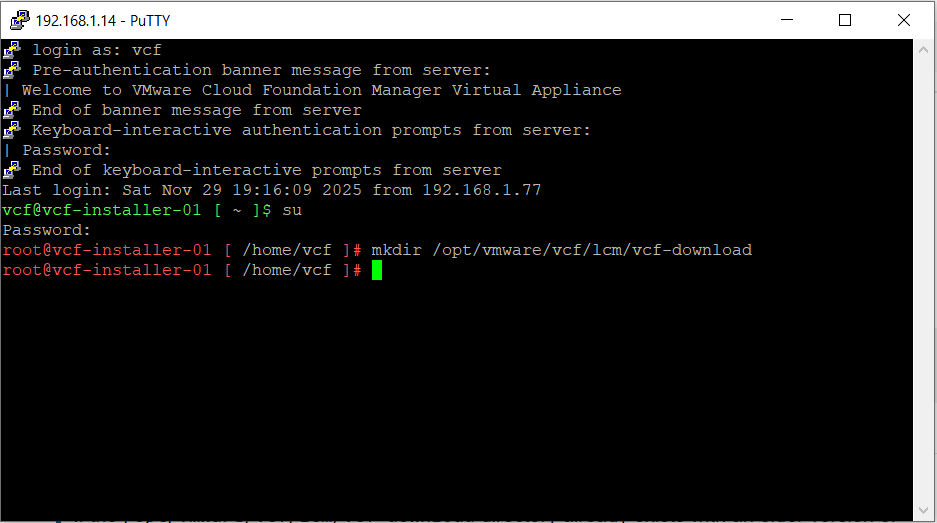
SSH in to the VCF Installer appliance using the vcf user account.
Enter su to switch to the root user, then create the vcf-download directory.
mkdir /opt/vmware/vcf/lcm/vcf-download
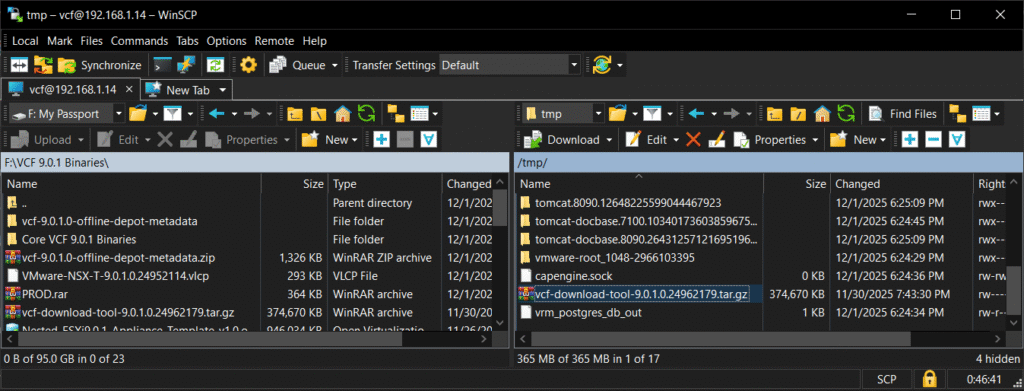
Using WinSCP, connect to VCF installer appliance using vcf user account, then copy the VMware Cloud Foundation Download Tool file (vcf-download-tool-9.0.1.0.24962179.tar.gz) to the /opt/vmware/vcf/lcm/vcf-download directory.
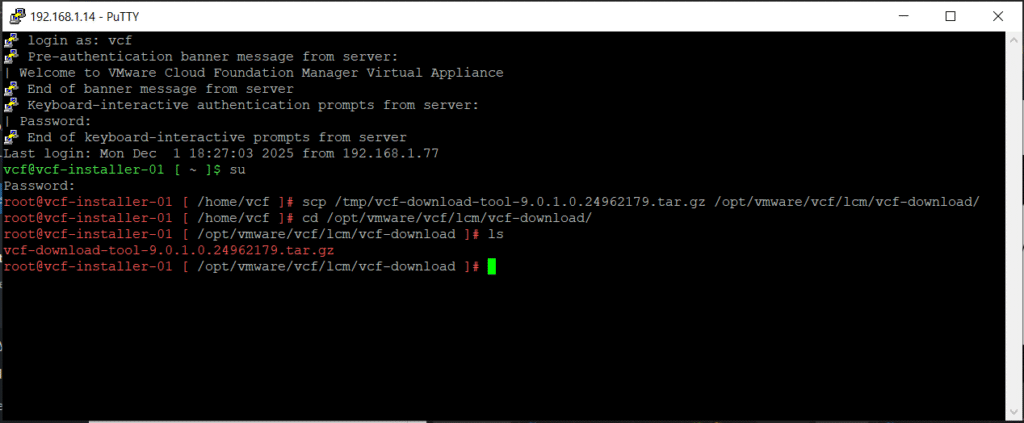
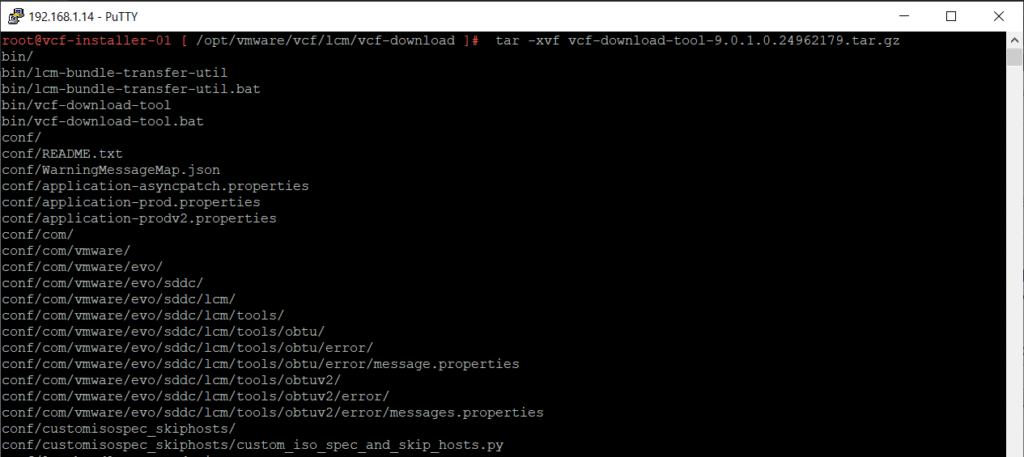
Extract the contents of vcf-download-tool-9.0.1.0.24962179.tar.gz.
tar -xvf vcf-download-tool-9.0.1.0.24962179.tar.gz
Step 6: Set the permissions for the vcf-download directory
cd /opt/vmware/vcf/lcm/
chown vcf_lcm:vcf -R vcf-download
chmod 750 -R vcf-download
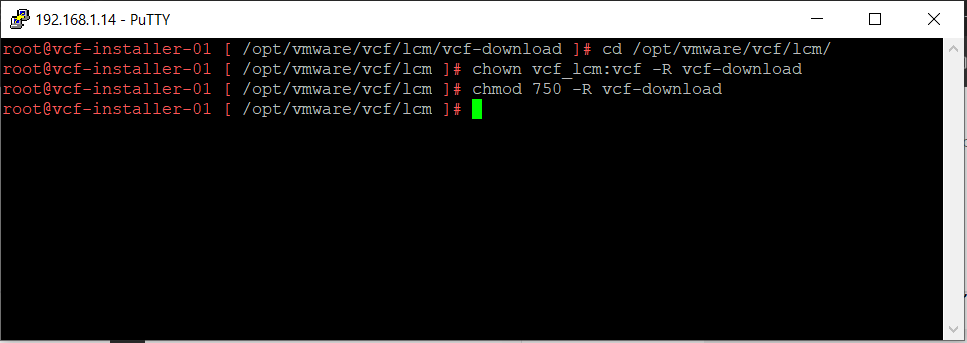
Step 7: Upload the binaries and metadata using VCF Download Tool
cd /opt/vmware/vcf/lcm/vcf-download/bin
./vcf-download-tool binaries upload –depot-store /download/directory/ –sddc-manager-fqdn FQDN –sddc-manager-user admin@local
Replace /download/directory/ by the directory where you copied the entire PROD folder (/nfs/vmware/vcf/nfs-mount/ in my case).
Replace FQDN by the fully qualified domain name of your VCF installer appliance (vcf-installer-01.demolab.local in my case).
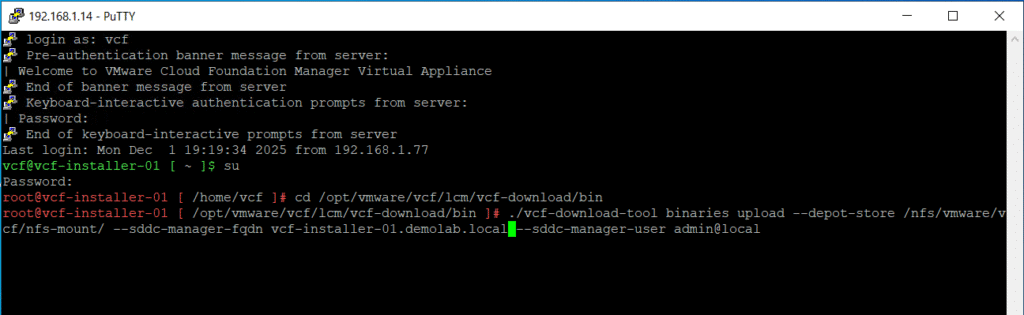
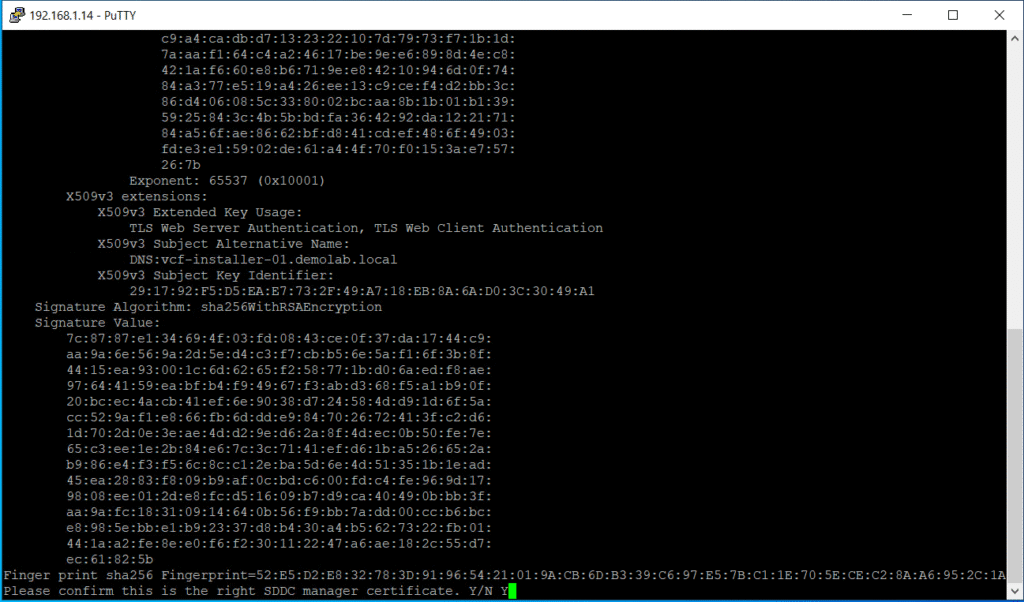
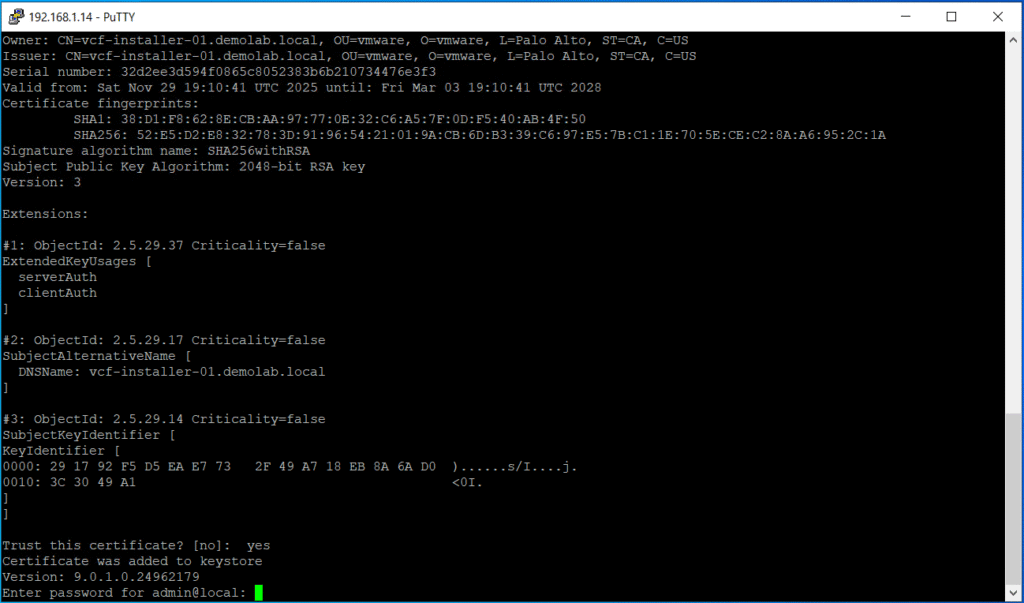
You need to confirm the SSL certificate of the VCF installer appliance as this is a self-signed cert.
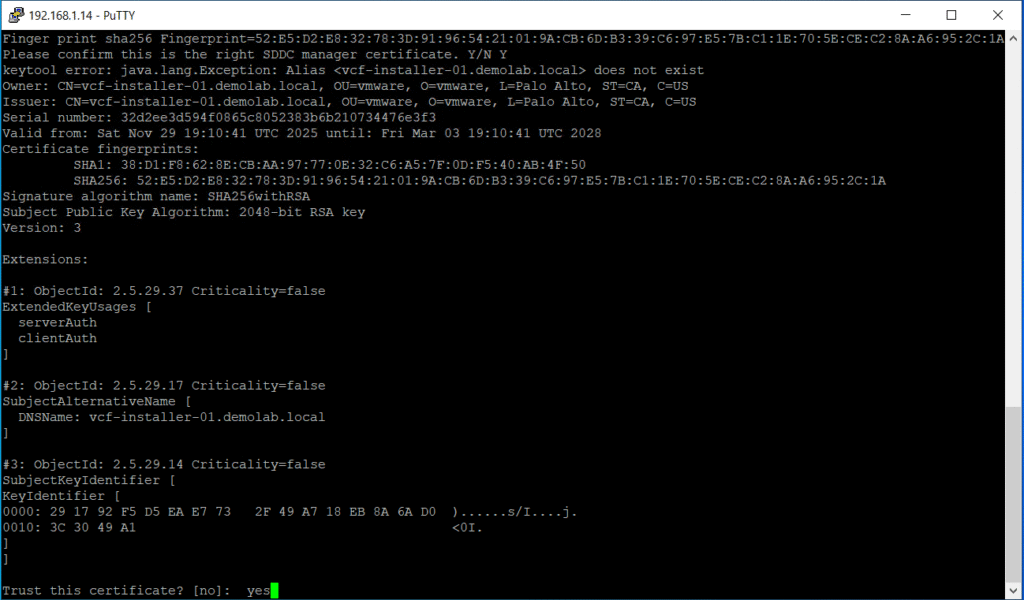
Next you need to trust the certificate of the VCF installer and it will be added to the Keystore automatically.
Now you will prompted to fill the admin@local password to be able to continue.

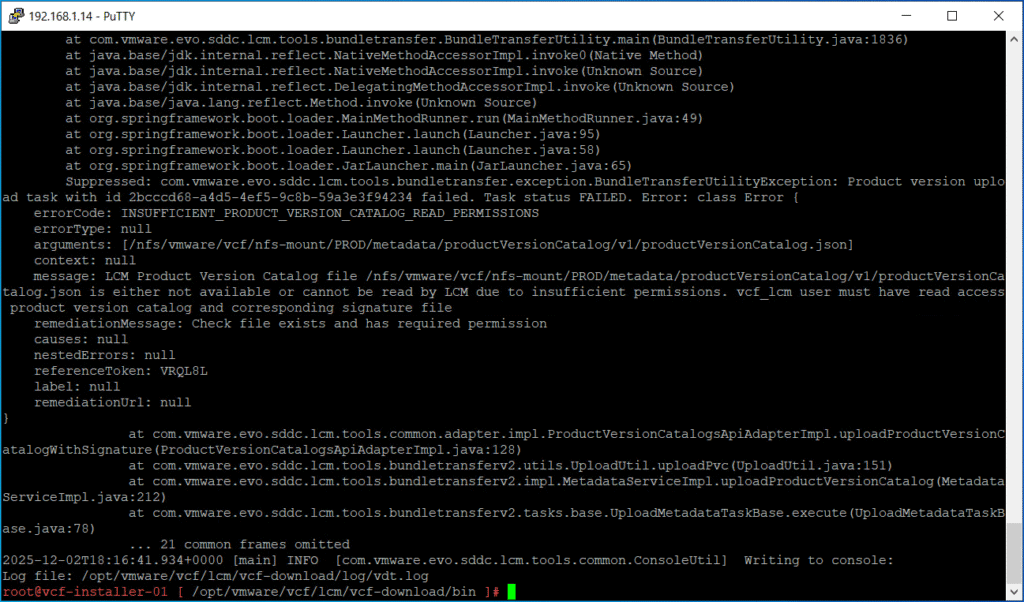
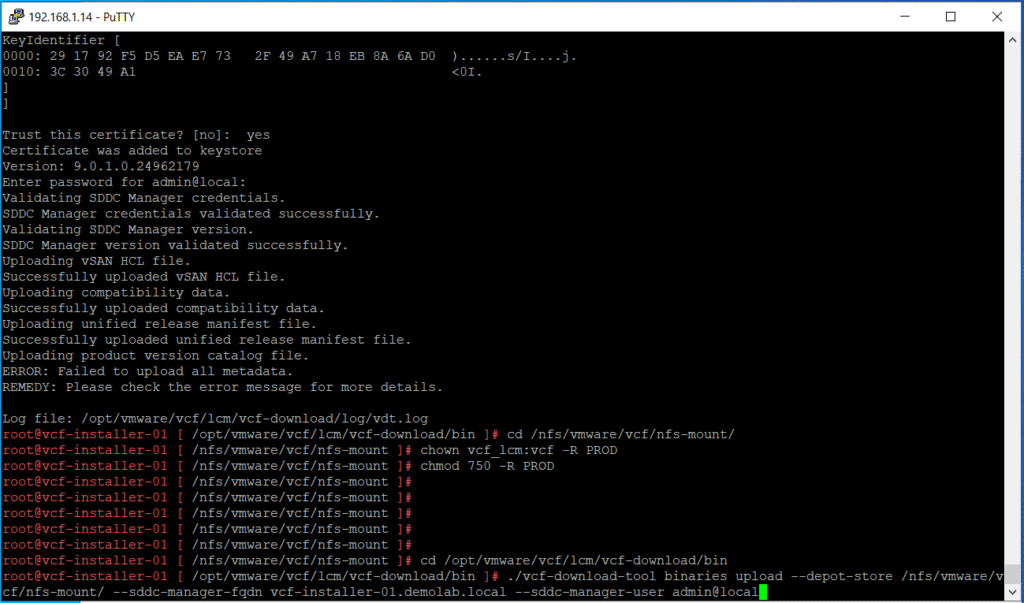
I got the above error. After checking the log file /opt/vmware/vcf/lcm/vcf-download/log/vdt.log, it seems that vcf_lcm does not have permissions to read the product version catalog and signature files. So, I set the same permissions as in step 6 for the PROD folder we uploaded to /nfs/vmware/vcf/nfs-mount/.
cd /nfs/vmware/vcf/nfs-mount/
chown vcf_lcm:vcf -R PROD
chmod 750 -R PROD
After that, I ran the VCF download tool command again and this time all went fine.
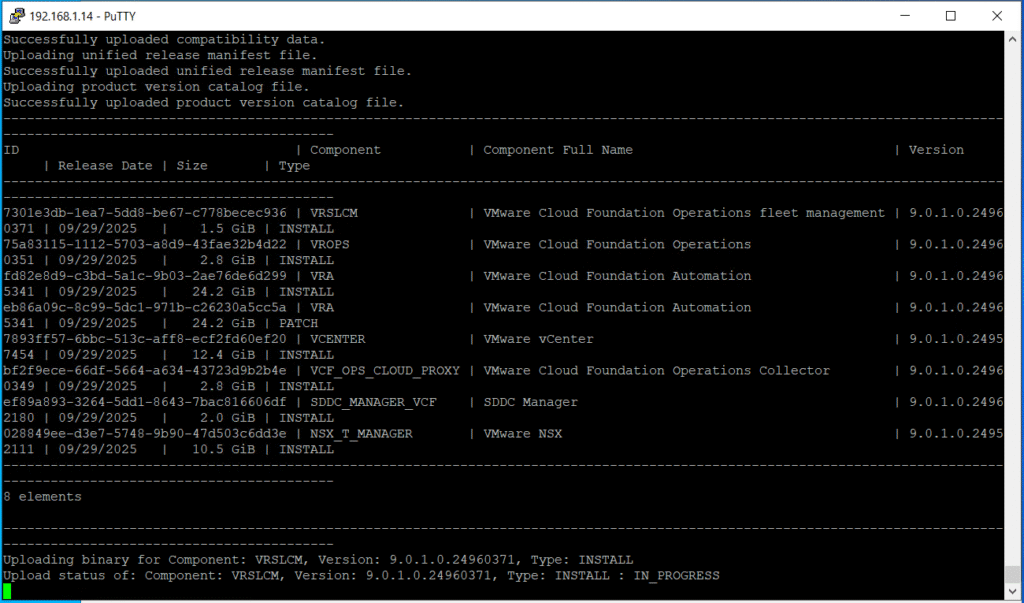
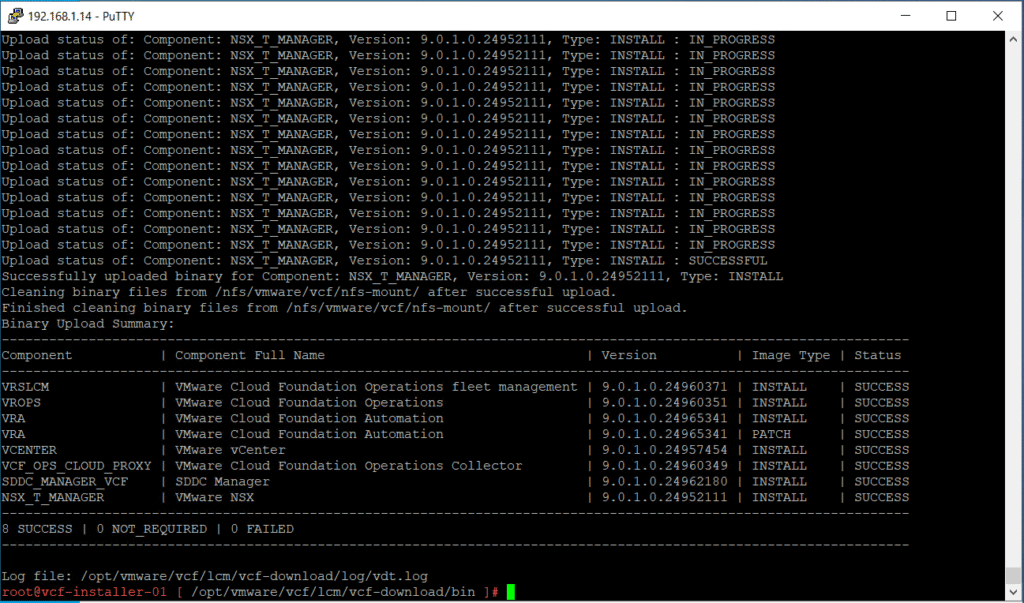
Step 8: Validate that binaries are reflected in the VCF Installer UI
Login to the VCF installer portal using admin@local account.
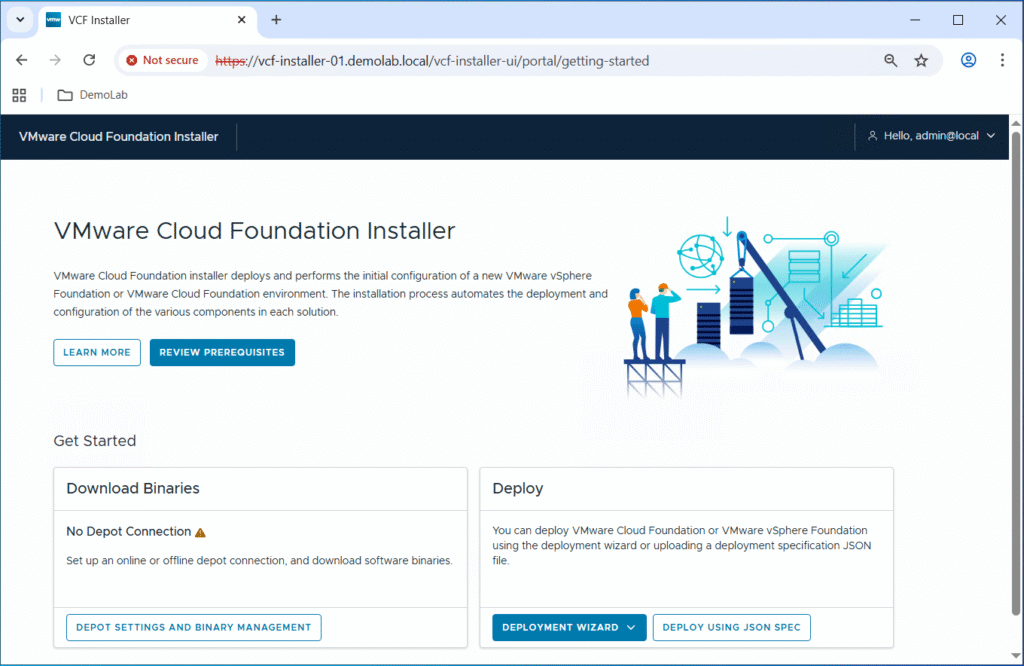
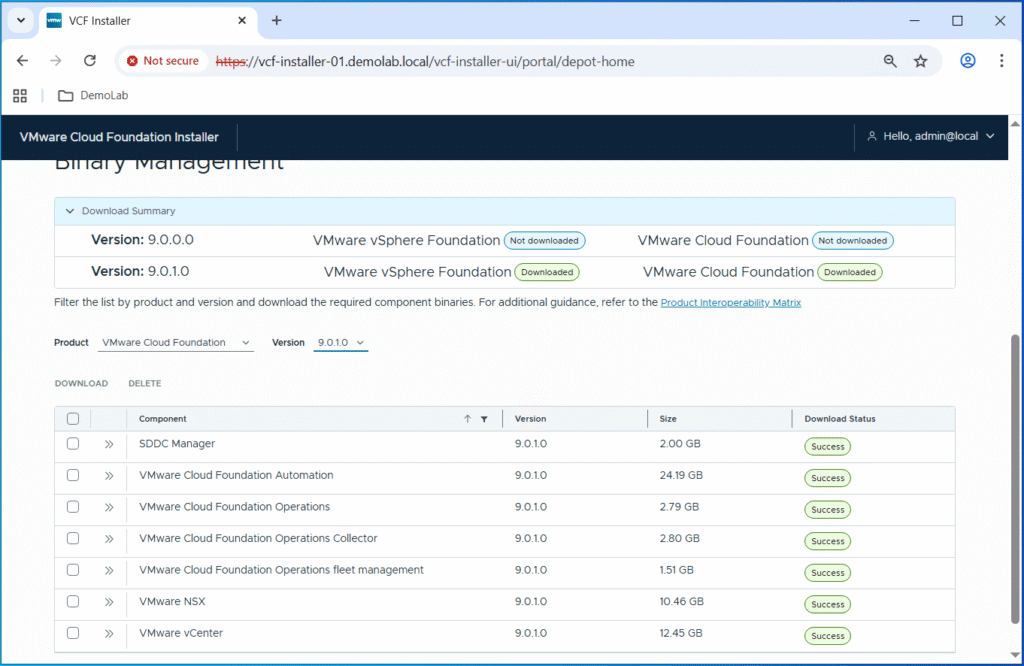
Click on “Depot Settings and Binary Management” and you should see that all the core VCF components successfully uploaded with a “Download Status” as “Success“.
Hope this post is informative,
Stay tuned for the next part where we will be kicking off the VCF bringup process through the VCF installer wizard.
Thanks for reading,
 (1 votes, average: 5.00 out of 5)
 Loading…