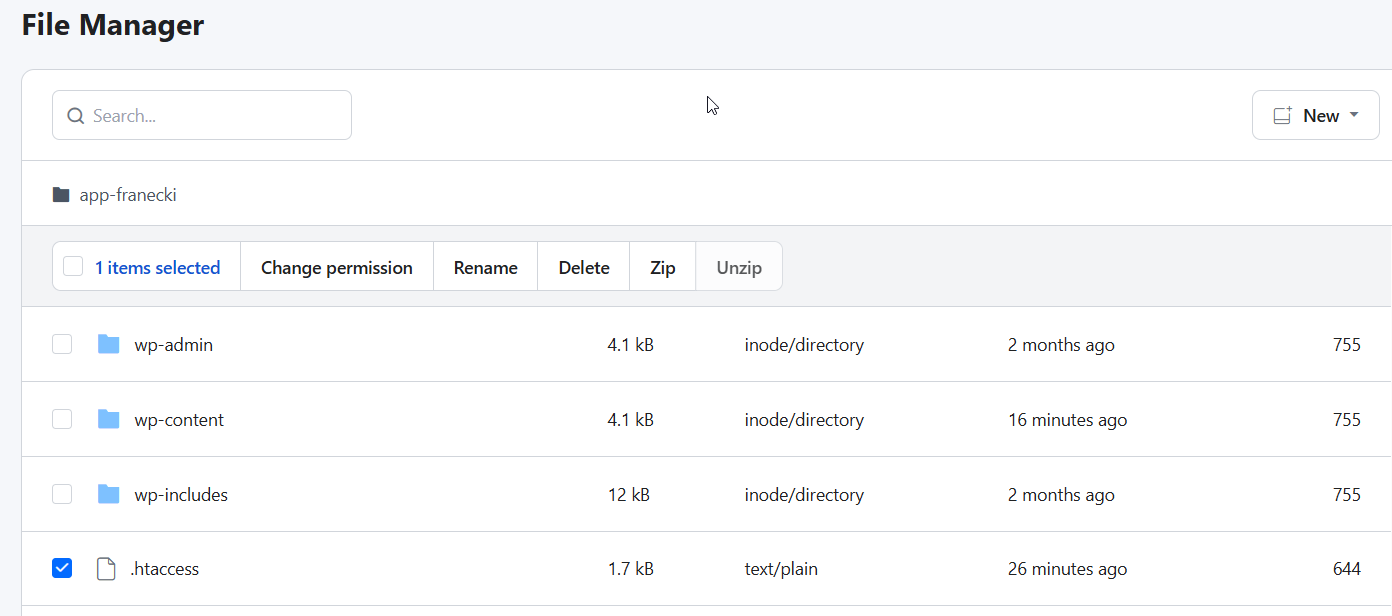
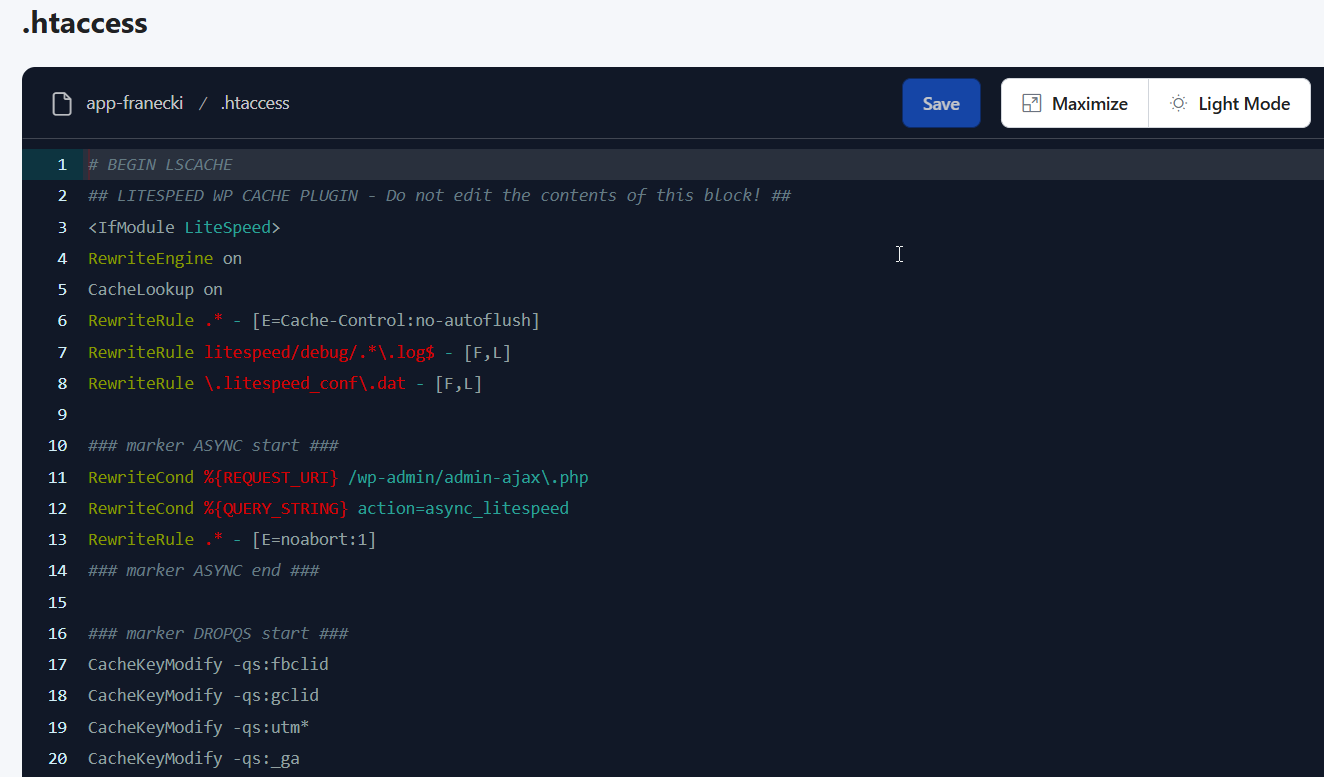
Your .htaccess file should have 644 permissions.
Table of Contents
- 1 Common Causes of Broken Permalinks
- 2 How to Fix Broken WordPress Permalinks (Step-by-Step)
- 3 Wrapping Up: Fixing WordPress Permalinks Easily
- 4 FAQs on WordPress Permalinks
Common Causes of Broken Permalinks
In our previous post on file permissions, we explained that file permissions in Linux are like digital locks on your website’s files. If the permissions are wrong, WordPress might be locked out and unable to work as expected.
- Plugin or theme conflicts: A new or updated plugin/theme can interfere with your URL rules and cause 404 errors.
- Corrupted .htaccess file: This configuration file controls your links. If damaged, it can stop your pages from loading.
- Recent WordPress updates: Updates can sometimes break permalink settings, especially with outdated plugins.
- Site migration or domain change: Moving to a new host or domain can leave WordPress pointing to old URLs.
- Restoring from backup: Restored settings may not match your current server environment, leading to mismatched link paths.
How to Fix Broken WordPress Permalinks (Step-by-Step)
If your website links are leading to “404 Page Not Found” errors, then don’t panic! This is a very common WordPress issue, and the fix is usually surprisingly simple. Follow the steps below to fix it:
1. Resetting Your Permalinks
Now, you’ll need to find the .htaccess file itself. In your File Manager or FTP client, navigate to the main (or “root”) directory of your WordPress installation. This is the top-level folder that contains your core WordPress directories, such as wp-content, wp-admin, and wp-includes.
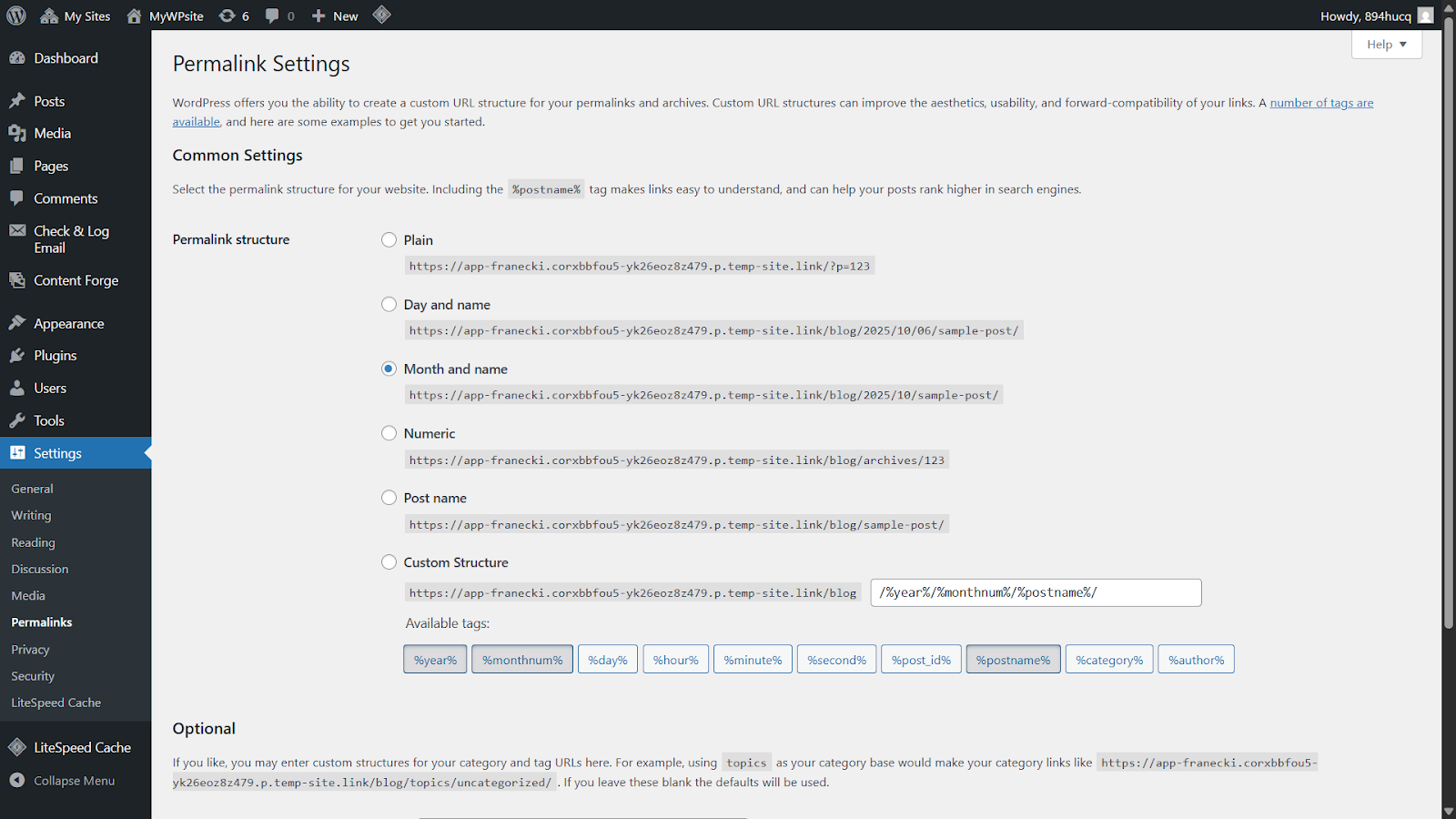
- Log in to your WordPress dashboard.
- Go to Settings → Permalinks.
- Without changing anything, click Save Changes.
Managing servers doesn’t have to be complicated.
The most common reasons for non-functional WordPress links are plugin or theme conflicts, a corrupted .htaccess file, incorrect server configuration, or issues after a website migration or update.
2. Temporarily Deactivating Your Plugins
Yes, a new plugin can interfere with your .htaccess file and break your permalinks. Deactivating plugins one by one is a good way to identify the culprit.Before we fix the problem, let’s look at what typically causes permalinks to fail. Here are the most common reasons why WordPress permalinks suddenly stop working:
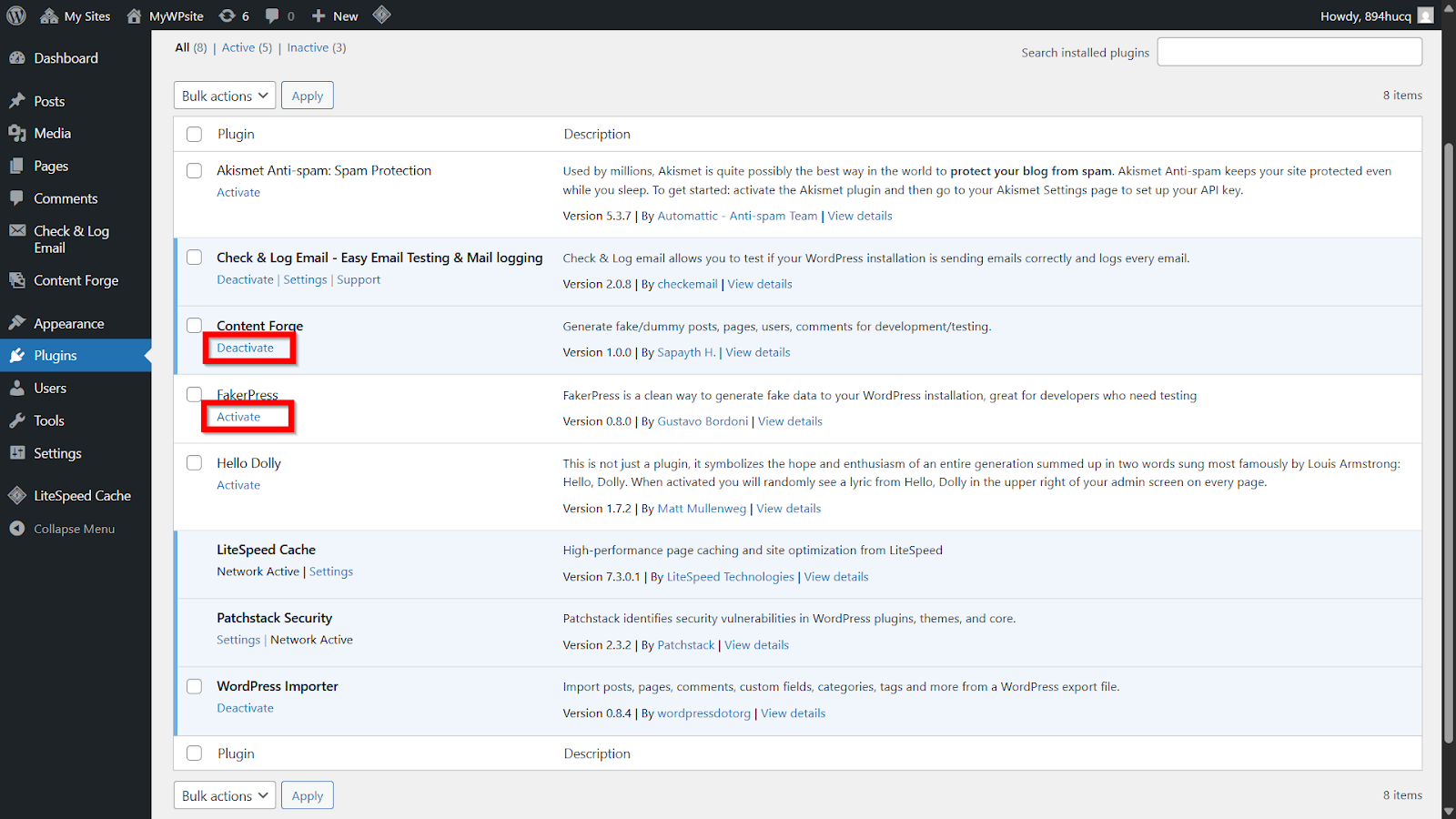
- Step 1: In your WordPress dashboard, go to Plugins > Installed Plugins.
- Step 2: From the list of active plugins, select the plugin that you want to disable temporarily and click Deactivate under it.
- Step 3: Now that this plugin is off, check your website. If your links work again, then you will know that this plugin was causing the issue.
- Step 4: Once you find the plugin causing the problems, you can either find a replacement for it or contact its developer for help.
3. Regenerate Your .htaccess File
In this step, you will need to deactivate your plugins one by one and try to identify what caused the issue. Don’t worry; deactivating a plugin won’t delete its settings or your data.By just re-saving the page, you’ve prompted WordPress to fix its link structure behind the scenes. Now, go visit one of your pages to see if the error is gone. If not, proceed to the next step.Now, leave your File Manager open and switch back to your WordPress dashboard in your browser.Once you have disabled the old file, you should create a new file with the necessary rules for your website. If you use caching plugins (like WP Rocket), security plugins (like Wordfence), or custom redirects, then you might need to add custom rules or restore them from the old file.
Step 1: Access Your Website Files
In this post, we have explained how to fix broken permalinks on a WordPress site. The good news is that the fix is almost always straightforward once you know where to look. By following this guide, you’ve learned how to diagnose and solve the issue quickly.Resetting your permalinks fixes 404 errors in most cases.
- Log in to your dashboard.
- Select your server and web application.
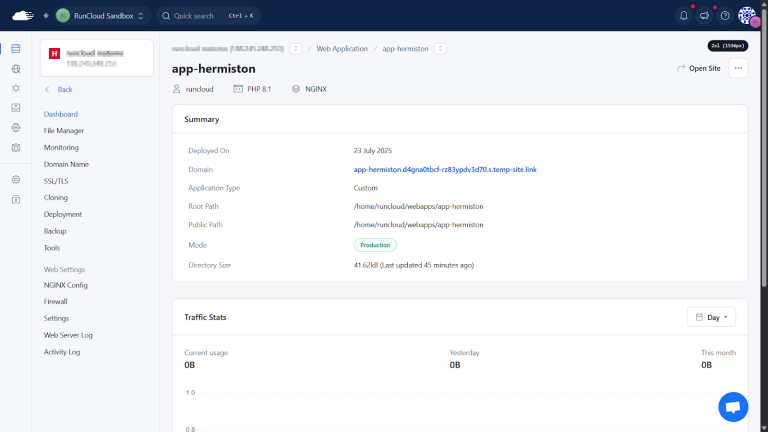
- Click File Manager to open your site’s root directory.
The recommended file permission for your .htaccess file is 644.
Step 2: Locate the .htaccess File in Your Website’s Root Folder
Important Note for NGINX Users: If your website runs on a pure NGINX server, you will not have an .htaccess file. NGINX handles permalinks differently. This step is only for users on Apache, LiteSpeed, or NGINX with .htaccess enabled servers. If you’re unsure, you can likely skip this and check your permissions (Step 4) or contact your host.The first step is to reset your permalinks by going to Settings > Permalinks and clicking “Save Changes”. If that doesn’t work, you should check for plugin conflicts or regenerate your .htaccess file.To access your site’s core files, use either an FTP client or the RunCloud File Manager.

RunCloud gives developers full control with one intuitive panel – from NGINX caching and SSL setup to automated backups.NGINX does not use .htaccess files to manage URL rules; its configuration is handled differently at the server level. If this describes your situation, then a broken or missing .htaccess file is not the cause of your permalink issue. You can safely skip the rest of this section and move on to the next potential fix.This step is a bit more hands-on and requires some technical knowledge. Many WordPress hosts and themes create an .htaccess file on the server. This file stores important configuration and tells the server how to handle URLs.
Step 3: Replace the Old .htaccess File
In your File Manager or FTP client, right-click on the original .htaccess file and choose the “Rename” option. A simple and effective name is .htaccess_old or .htaccess_backup.WARNING: Your .htaccess file is extremely sensitive. Editing this file incorrectly can instantly break your entire website. A bad edit could also silently create security vulnerabilities. Only proceed with this step if you are comfortable editing core website files and have made a backup.Here’s how to safely force WordPress to generate a new, default version:This action does two things at once: first, it preserves your original file in case you need to restore it. Second, by renaming it, you effectively deactivate the old, potentially corrupted file.
- On the left-hand menu, navigate to Settings > Permalinks.
- You do not need to change any of your permalink settings on this page. Simply scroll to the bottom and click the Save Changes button.
From here, find and back up your .htaccess file. Rename it to .htaccess_old, then go to Settings → Permalinks → Save Changes in WordPress to generate a clean version.
Step 4: Manually Editing .htaccess
While these fixes are effective, the real goal is to spend less time troubleshooting and more time building. Having the right tools can make all the difference as it transforms complex server tasks into simple clicks.
4. Reviewing File Permissions
It’s very common not to see this file at first glance. By default, files that start with a dot (like .htaccess) are treated as “hidden files” or “dotfiles” by many systems. Your file manager is likely hiding it to prevent you from making accidental changes.First, you should download the existing .htaccess file to your laptop for a backup. With your backup safely downloaded, you can now proceed with resetting the file on your server. If you have correctly enabled hidden files and the .htaccess file is genuinely not there, it is a strong indicator that your website is not running on an Apache or LiteSpeed server. Instead, it is likely on an NGINX server, which is a popular, high-performance alternative.
Wrapping Up: Fixing WordPress Permalinks Easily
You will need to configure your tool to show these hidden files. In an FTP Client (like FileZilla): this setting is usually in the top menu bar. Look for an option under “Server” and click “Force showing hidden files”.Permalinks are your post and page URLs. When they break, visitors can’t reach your content, and your SEO suffers. This guide walks you through quick fixes that restore your links in minutes.Broken WordPress permalinks are usually to blame – and while frustrating, they’re easy to fix.Seeing “404 Page Not Found” on posts that definitely exist?WordPress will refresh your link structure automatically. Check your pages again – the issue is often already fixed.