define('DISABLE_WP_CRON', true);
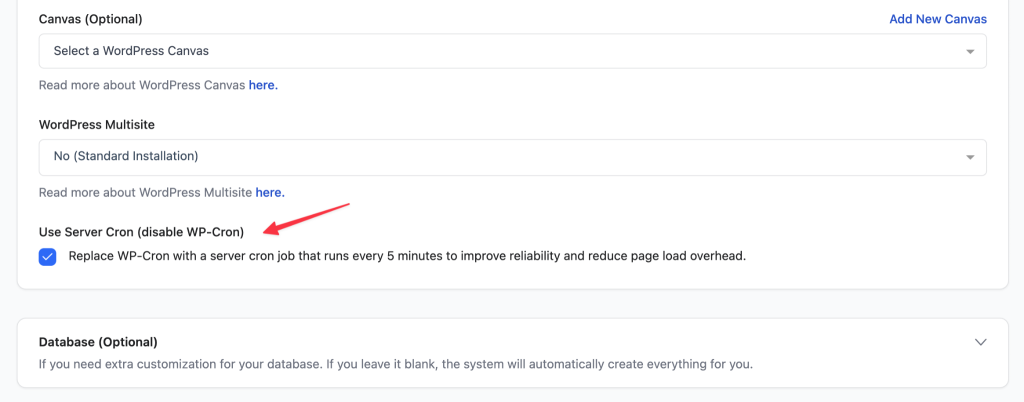
- Add a Server Cron: In your RunCloud dashboard, select the server where your site is hosted, and click on the Cron Job tab in the left menu. On this screen, add a new job with the following command to run every 5 minutes (*/5 * * * *):
Learn more about maximizing your database speed:Your web server software also plays a massive role. The older Apache + mod_php stack spawns a brand-new PHP process for every single request. In contrast, NGINX paired with PHP-FPM reuses worker pools, which is far more efficient for heavy admin operations.Tip: Properly configuring your site’s core settings can prevent bloat before it happens. Learn more in our guide: Everything You Need To Know About the wp-config.php File.
Table of Contents
- 1 Why WordPress Admin Loads Differently From Your Frontend
- 1.1 Fix 1: Increase the PHP Memory Limit
- 1.2 Fix 4: Audit and Cut Admin-Side Plugin Bloat
- 1.3 Fix 3: Throttle the WordPress Heartbeat API
- 1.4 Fix 5: Clean Your Database (Revisions, Transients, Bloat)
- 1.5 Fix 6: Replace WP-Cron With a Real Server Cron Job
- 1.6 Fix 7: Right-Size Your Server Stack (CPU, RAM, and NGINX)
- 1.7 Fix 8: Add a Redis Object Cache
- 2 Final Thoughts: Which Fix Do You Need?
Why WordPress Admin Loads Differently From Your Frontend
We provide a highly optimized NGINX and PHP-FPM server stack engineered specifically to make WordPress fly. From 1-click PHP version upgrades to instant deployment of Redis object cache via RunCache, RunCloud puts powerful, server-level optimizations right at your fingertips (no SSH or command-line experience required).If your website loads instantly for visitors but is slow for you, it comes down to how caching works. The WordPress admin dashboard bypasses page caching entirely, meaning authenticated requests are never cached.While public pages serve lightweight, static HTML files to your visitors, every single click inside the wp-admin dashboard forces your server to generate the page from scratch. This triggers heavy PHP execution, dozens of database queries, and complex plugin hooks.
Fix 1: Increase the PHP Memory Limit
There are two ways to fix this:Yes, the WooCommerce admin is often slower than a standard WordPress backend because e-commerce platforms run significantly more database queries per page. Tasks like processing orders, checking inventory, and calculating analytics put a heavy, dynamic strain on your server’s database.
To enable this manually, you must install a Redis server on your VPS and configure an object cache drop-in plugin within your WordPress files. For a much easier approach, you can simply install RunCache for your WordPress site. RunCache automatically provisions the Redis server and seamlessly configures the required WordPress drop-in, instantly optimizing your database queries.add_filter( 'heartbeat_settings', function($settings) {
$settings['interval'] = 60; // Delays execution to 60 seconds
return $settings;
} );
- Using a Plugin: Alternatively, install the free Heartbeat Controller plugin from the WordPress repository. Go to its settings and set the interval for the WordPress Dashboard, Frontend, and Post Editor to 60 seconds.
Fix 4: Audit and Cut Admin-Side Plugin Bloat
Follow the steps below to fix this:You can throttle this activity to run every 60 seconds (or disable it entirely on non-essential pages). There are two ways to do this:
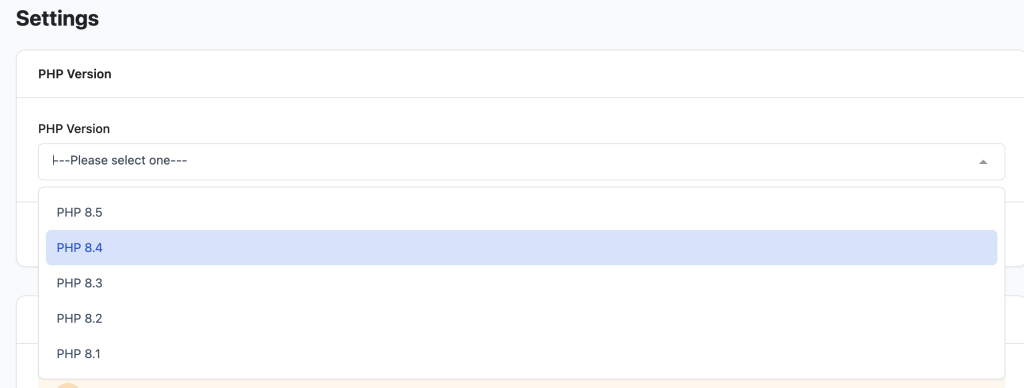
- Go to your Web Application
- Click Settings
- Select PHP 8.2 or higher from the dropdown menu
Stop wasting hours battling manual server configurations, editing php.ini files, or staring at a loading spinner inside wp-admin.
After installing RunCache, you can enable object caching with a single toggle in your WordPress admin dashboard, without fiddling with configuration files or SSHing into the server.
Fix 3: Throttle the WordPress Heartbeat API
It is highly recommended to enable a real server-based cron for your WordPress website using the following steps:In this guide, we will walk you through 8 proven backend-specific fixes (including optimizing PHP workers, stopping WP-Cron bloat, and enabling Redis object caching) to instantly speed up your WordPress admin.
- Using a Snippet: Add the following code to your theme’s functions.php file or a code snippets plugin:
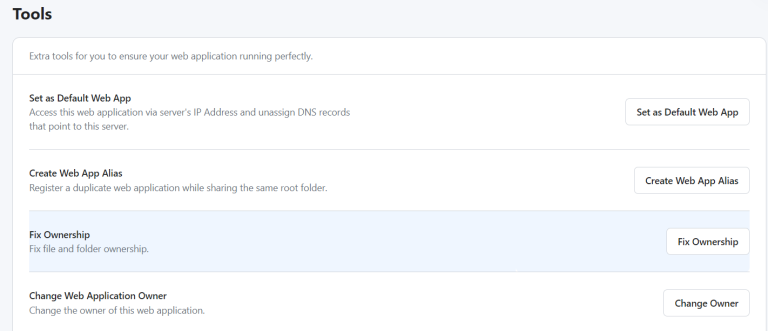
Curious about how NGINX handles heavy traffic? Read our deep dive into advanced NGINX configuration.If you are using RunCloud, you can replace WordPress cron jobs with real cron jobs directly from the RunCloud dashboard by selecting a checkbox during WordPress installation:
- Install the free Query Monitor plugin. Open your admin dashboard and look at the Query Monitor data in your admin bar. It will break down exactly which plugins are taking the longest to load, generating the most database queries, or consuming the most memory.
- Install a plugin like Asset CleanUp or Perfmatters. These tools allow you to conditionally disable scripts and styles from loading on pages where they aren’t needed.
- Deactivate and permanently delete any plugins that run background processes or analytics that you don’t actually need or use daily.
Fix 5: Clean Your Database (Revisions, Transients, Bloat)
Implementing this manually requires installing a Redis server and manually tweaking configuration files, but we’ve made it effortless with RunCache, which includes Redis object caching.Troubleshooting a slow WordPress admin doesn’t have to be a guessing game. Here is a quick diagnostic cheat sheet to help you pinpoint exactly which fix will deliver the fastest results, depending on when and where you experience the lag:
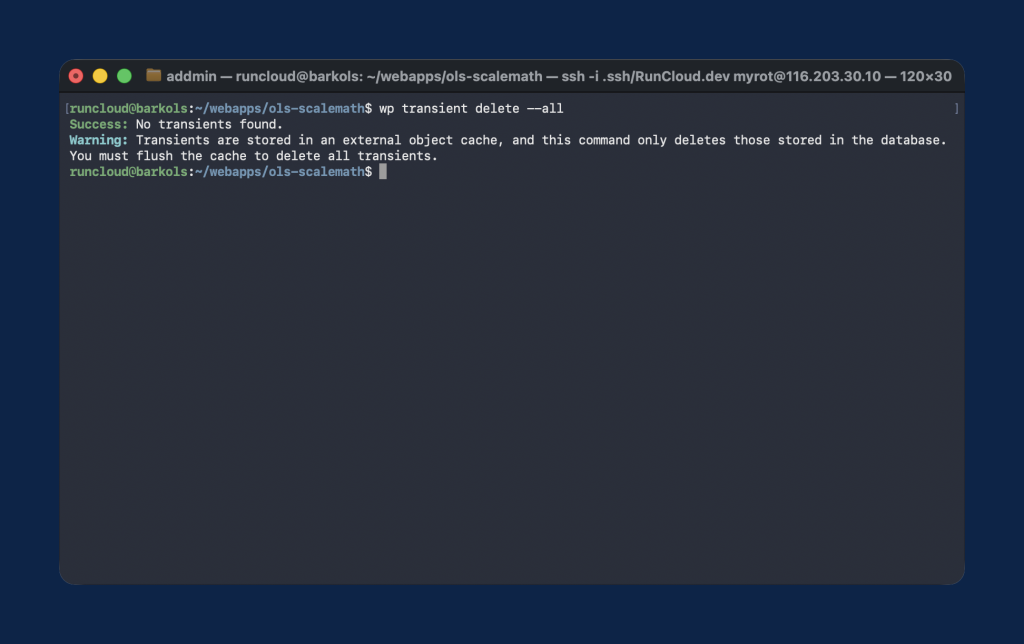
- The WP-CLI Method (For Advanced Users): If you are comfortable in the terminal, you can clean your database in just a few seconds. Run wp transient delete –all to clear expired cached data, and run wp post delete $(wp post list –post_type=revision –format=ids) to purge old revisions.
- The GUI Method: Install a free optimization plugin, such as WP-Optimize. Use its dashboard-based tools to clean up database tables, remove spam comments, and delete post revisions.
With RunCloud, you don’t need to be a Linux system administrator to get enterprise-grade performance.
Fix 6: Replace WP-Cron With a Real Server Cron Job
While your website visitors are served blazing-fast, static HTML files via page caching, those rules are intentionally bypassed the moment you log in.Upgrading to PHP 8.2 with OPcache enabled can drastically reduce admin response times by storing precompiled script bytecode in shared memory.
- Disable WP-Cron: Open your wp-config.php file and add the following line to stop WordPress from executing cron on page loads:
Every single time you load a page in wp-admin, WordPress runs anywhere from 30 to 80 database queries. Without an object cache, every single one of those queries hits your MySQL database. These heavy database queries are the main reason the WordPress backend (especially WooCommerce) feels slow.RunCloud lets you switch PHP versions directly from the dashboard:
Fix 7: Right-Size Your Server Stack (CPU, RAM, and NGINX)
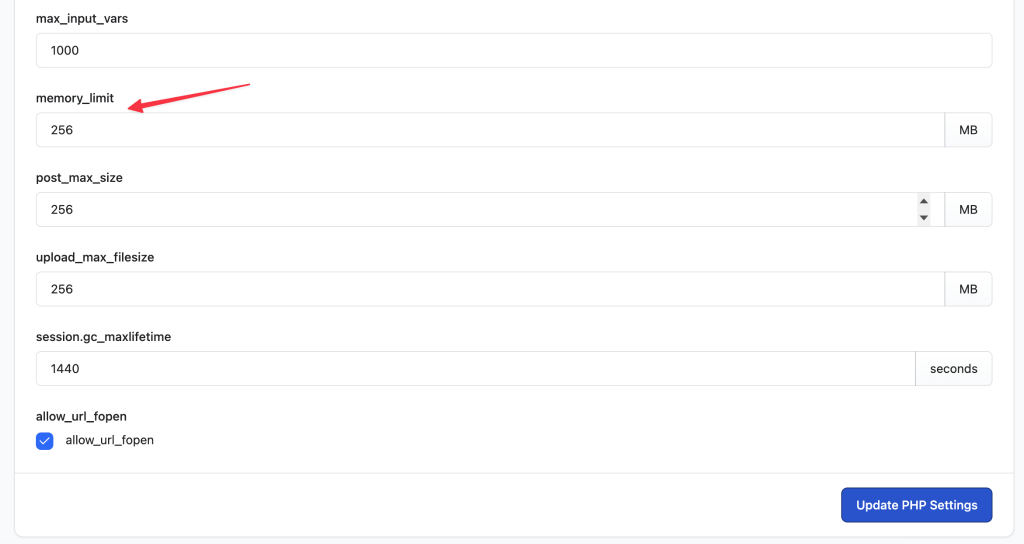
If you prefer the manual route, use the RunCloud File Manager to open your wp-config.php file, then add the following line just before the “That’s all, stop editing!” line:By default, WordPress allocates only a few MB of memory for single-site installations. This is far too low for a modern, plugin-heavy WordPress admin dashboard, and it often results in slow load times or “fatal memory exhausted” errors.If you’re using RunCloud, then fortunately, you don’t need to touch any code. Simply log in to your RunCloud dashboard, select your Web Application, and navigate to Settings > PHP Settings. Edit the memory_limit setting to 256M (or 512M for WooCommerce sites). The WordPress admin dashboard bypasses the cache entirely, making the dashboard CPU-bound. A 1-core VPS will always feel sluggish in the backend, regardless of how many caching plugins you install.
Fix 8: Add a Redis Object Cache
Every time you hit “Save Draft” or let WordPress auto-save your work, it creates a new post revision in your database. On a site that’s a few years old, this can quickly result in 10,000+ orphaned revision rows, expired transients, and metadata bloat. You can improve this by enabling Object caching for your WordPress site. Object caching stores the results of repeated database queries directly in your server’s RAM. By serving these queries from your memory instead of the hard disk, you can significantly speed up the load times of your WordPress admin page.By default, WordPress handles scheduled tasks (like publishing scheduled posts, checking for updates, or sending emails) using Cron Jobs. However, WordPress Cron doesn’t use a real system scheduler. Whenever a user or admin visits a page, WP-Cron checks for pending tasks, which can hit the admin dashboard hard and cause random, massive spikes in load times.Have you ever wondered why your WordPress dashboard is crawling when your live site is flying? It all comes down to how your server handles data. You’ve optimized your website’s frontend for visitors, and it passes all core web vitals checks, but when you open the WordPress admin dashboard, time seems to stand still, and you’re left waiting ages for it to fully load.
Final Thoughts: Which Fix Do You Need?
The WordPress Heartbeat API is responsible for autosaving posts, tracking user sessions, and showing real-time plugin notifications. However, it does this by firing continuous admin-ajax.php requests every 15 seconds. If you have multiple tabs open, it effectively hammers your server and slows the admin area to a crawl.
- Frontend fast, admin slow: Your server needs help handling raw queries. Start with OPcache, upgrading your Server Stack, and enabling Redis Object Cache.
- Admin slow after a new plugin install: You are likely dealing with heavy asset bloat or conflicting background processes.
- Admin slow after heavy content publishing: Your database is bogged down by thousands of auto-saves, revisions, and expired transients. Clean your database to restore speed.
- Admin is slow only in the post editor: The Gutenberg editor and the WordPress Heartbeat API are hammering your server with constant AJAX requests. You can throttle the Heartbeat API to gain some performance.
- Admin is slow across everything, always: Your server is fundamentally starved for basic PHP resources. You should start by increasing the PHP Memory Limit and upgrading to PHP 8.2+.
Ready to Stop Waiting on Your WordPress Admin?
Want to learn more about the performance benefits? Check out our detailed guide on upgrading to PHP 8.To speed up your dashboard, you need a completely different set of server and application-level fixes.Sign up for RunCloud today.define( 'WP_MEMORY_LIMIT', '256M' );
Fix 2: Upgrade to PHP 8.2+ and Verify OPcache Is On
Standard page caching will not speed up your WordPress admin since it is bypassed for logged-in users to ensure dynamic content remains accurate. However, implementing a Redis object cache is highly effective for accelerating your backend performance.


![How to Install WordPress on Docker in 2024 [Step-By-Step Guide]](https://vmme.org/wp-content/uploads/2024/09/how-to-install-wordpress-on-docker-in-2024-step-by-step-guide-4-768x443.png)