Let’s take a quick look at some of the core features of Perfmatters and how it improves Core Web Vitals.
Table of Contents
- 1 The TL;DR Verdict: Is Perfmatters Worth It?
- 2 What is Perfmatters?
- 3 How Perfmatters Improves Core Web Vitals
- 4 How Much Does Perfmatters Cost?
- 5 Pros and Cons of Perfmatters
- 6 How To Install Perfmatters Plugin
- 7 Perfmatters Basic Configuration
- 8 Perfmatters vs. Alternatives: Choosing the Right Performance Stack
- 9 Final Thoughts
- 10 Frequently Asked Questions
The TL;DR Verdict: Is Perfmatters Worth It?
Perfmatters has three pricing plans based on the number of sites you want to use it on. The plans are:Yes, Perfmatters is highly recommended for WooCommerce. WooCommerce loads cart and checkout scripts on every page by default. Perfmatters allows you to disable these scripts on your blog posts and homepage, significantly speeding up your site.
- Site owners who are trying to meet Core Web Vitals requirements.
- Users with “heavy” page builders (Elementor, Divi) who need to trim unused scripts.
- WooCommerce store owners who need granular control over where checkout scripts load.
- Power users looking to pair a script manager with their existing caching stack (such as WP Rocket or RunCloud’s server-level caching).
They serve different purposes. WP Rocket is an all-in-one caching plugin, while Perfmatters specializes in asset management and removing unused code. For the best results, they should be used together.
- Complete beginners looking for a hands-off, “set-it-and-forget-it” optimization plugin.
- Users who only want image compression (Perfmatters does not compress images or convert to WebP).
What is Perfmatters?
All plans come with 1 year of updates and support, a 30-day money-back guarantee, and a 10% renewal discount.Loading third-party resources (like Google Analytics or Google Fonts) requires the browser to perform DNS lookups and establish new connections, which takes time.If you upload an image without specifying its width and height, the browser doesn’t know how much space to reserve for it. When the image finally loads, the content below it jumps down the page.
How Perfmatters Improves Core Web Vitals
Perfmatters isn’t a replacement for your caching plugin – it’s the final tuning layer, focusing on bloat removal and script management.
1. The Script Manager
Perfmatters offers many features to help you optimize your site’s performance. However, it doesn’t enable any optimization features by default. You will have to manually toggle the switch for each feature and test your site for any issues. If you notice any problem, you can simply turn off the feature and try another one.That’s it! You have successfully installed the Perfmatters plugin on your site.
2. General Bloat Removal
No, Perfmatters is not a caching plugin. It’s a performance optimization and script management plugin. It is designed to work alongside your existing caching solution (like WP Rocket or server-level caching) to remove bloat and reduce page weight.Perfmatters offers a dashboard with simple toggle switches to disable these unnecessary WordPress core features. This reduces overall HTTP requests and slims down the page weight.
3. Advanced Lazy Loading
Get started with RunCloud today & get up and running in minutes. By the end of this article, you’ll be able to make your WordPress site faster, more responsive, and more user-friendly with the Perfmatters plugin.
4. Adding Missing Image Dimensions
Most modern browsers have native lazy loading, but Perfmatters takes it further by letting you lazy-load images, iframes, and videos. Most impressively, it can replace YouTube iframes with a static preview image, only loading the heavy video player when the user clicks play.Who should skip it:
5. Local Analytics and Fonts
Deciding between Perfmatters, WP Rocket, or FlyingPress? While all three provide WordPress performance optimization, they function differently. The following comparison shows their strengths to help you pick the right tool for your specific setup.Deferring off-screen images ensures the browser focuses its resources on the content the user sees first, drastically improving Largest Contentful Paint (LCP). This feature can be quite powerful, providing a massive performance boost for media-heavy sites.
How Much Does Perfmatters Cost?
RunCloud is built for developers who want to focus on shipping great work, not on managing their infrastructure. Experience painless server configuration, with no need to spend hours figuring it out.
- Personal: $29.95 per year for 1 site.
- Business: $59.95 per year for 3 sites.
- Unlimited: $124.95 per year for unlimited sites and multisite networks.
No, Perfmatters does not have a free version or a trial. It is a premium-only plugin, but it does offer a 30-day money-back guarantee.
Pros and Cons of Perfmatters
| Pros | Cons |
| Lightweight Footprint: Minimal code with surgical, granular script control. | No Free Version: No free tier or trial available to test before buying. |
| Best-in-Class Script Manager: Unmatched control over per-page/post asset management. | Not All-in-One: Requires pairing with a separate page caching solution. |
| Core Web Vitals Booster: Drastic improvements to INP, LCP, and CLS when properly configured. | No Image Optimization: Lacks built-in image compression or WebP conversion features. |
| Highly Compatible: Works flawlessly alongside caching plugins (WP Rocket, FlyingPress, RunCloud Hub). | Learning Curve: Requires technical knowledge to identify which scripts to disable safely. |
| Privacy & Speed: Local hosting for Google Analytics and Google Fonts built right in. | Manual Configuration: Not a “set-and-forget” plugin; requires active tweaking for top results. |
| Automated Maintenance: Scheduled database cleanup keeps your site lean. |
How To Install Perfmatters Plugin
Yes. If your site has sluggish Interaction to Next Paint (INP) scores or frustratingly slow Largest Contentful Paint (LCP) times, then using Perfmatters is one of the most effective ways to speed up your website.
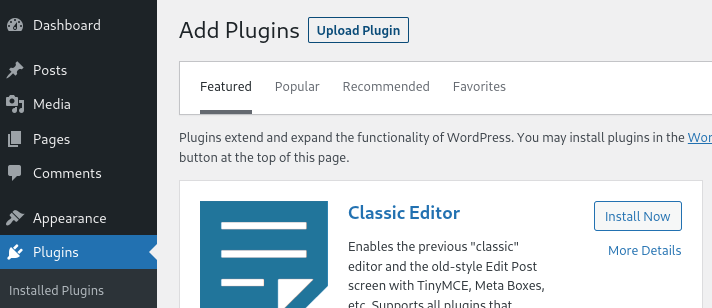
- To install the Perfmatters plugin, open your WordPress dashboard and navigate to the “Plugins” tab. Click on the “Upload Plugin” button and select the ZIP archive you received after completing your purchase.
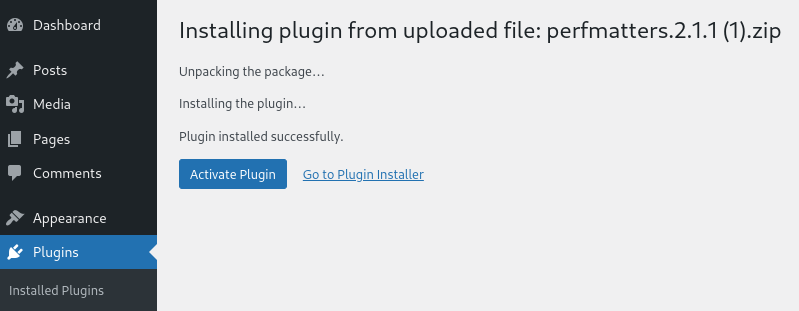
- After the Installation is complete, click on “Activate Plugin” to start using it on your site.
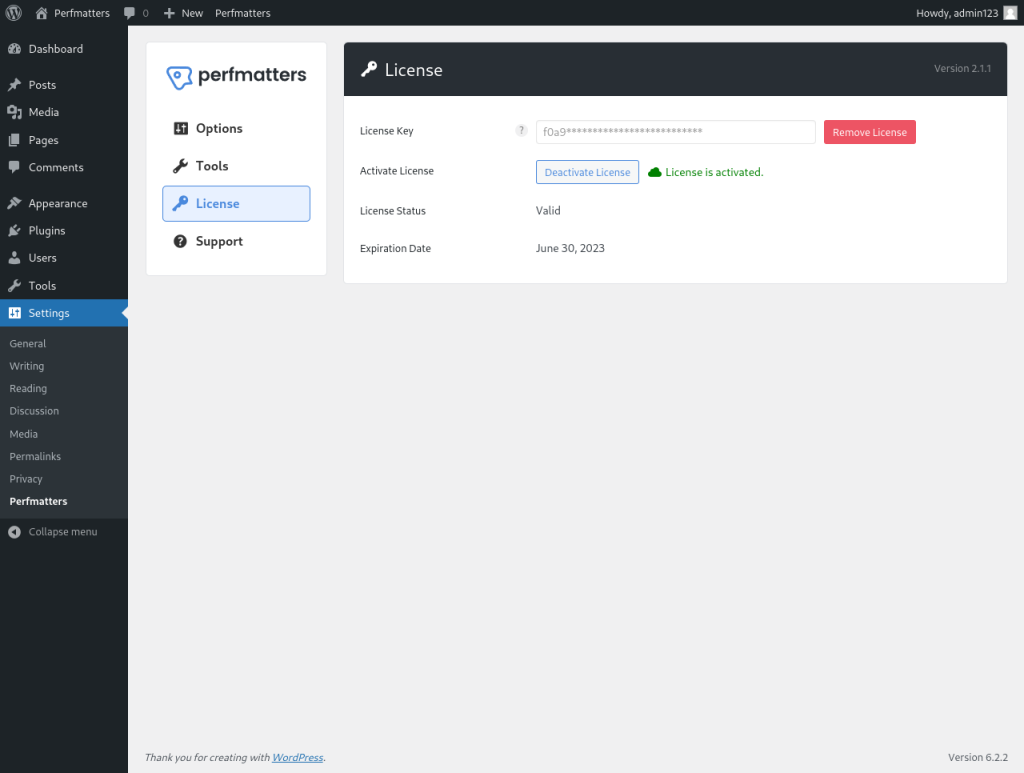
- Once you have enabled the plugin, go to plugin settings and switch to the “License” tab. Enter your License key to activate all the features of the plugin.
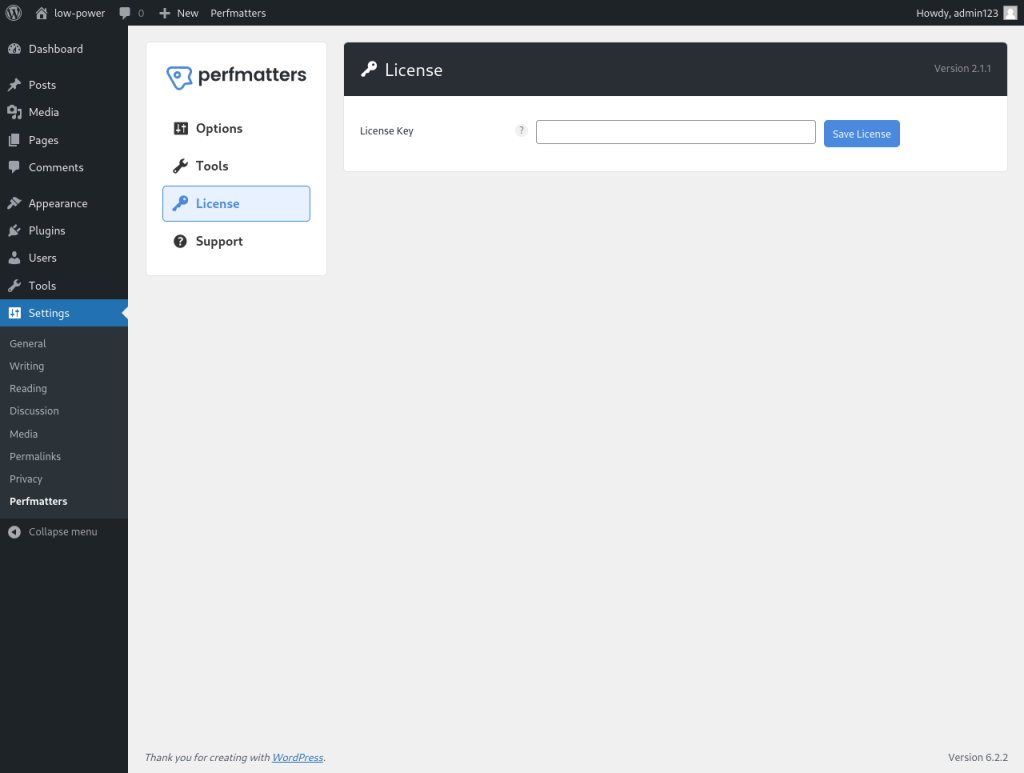
- Once you have entered the key, you will see a message that says “License is activated” – along with the validity of your license.
Yes. If you’re struggling with Core Web Vitals, specifically INP or LCP, Perfmatters offers the granular control needed to fix those issues. For .95/year, it provides incredible value.
Perfmatters Basic Configuration
If you’re looking for a plugin that can make your site faster, more responsive, and more user-friendly, then Perfmatters is a great choice for you.If your WordPress site is struggling to pass Core Web Vitals, despite using a premium caching plugin, you aren’t alone. WordPress themes and page builders are getting more complex, and standard caching isn’t always enough to eliminate main-thread blocking JavaScript or prevent Cumulative Layout Shift (CLS).
- Script Manager: This feature lets you control which scripts load on each page or post on your site. You can turn scripts off or on that are either not needed or cause conflicts. You can also change how the scripts load, such as in the header or footer, asynchronously or deferentially, to improve your site’s speed and compatibility.
- Lazy Loading: This feature delays the loading of images, videos, iframes, and other elements until they are visible on the screen. This reduces the initial page load time and saves bandwidth. You can also enable DOM monitoring, which detects new elements added to the page and automatically applies lazy loading to them.
- DNS Prefetch: This feature resolves the domain names of external resources, such as images, fonts, scripts, etc., before they are requested by the browser. This reduces latency and improves your site’s loading speed. You can also manually add custom domains to prefetch.
- Preconnect: This is an extension of the DNS Prefetch feature. In addition to resolving domain names, it establishes early connections to external domains before the browser requests them. This reduces the round-trip time and improves your site’s loading speed. You can also manually add custom domains to preconnect.
- Heartbeat Control: This feature controls the frequency of the WordPress heartbeat API, which sends requests to the server every few seconds. These requests can consume server resources and slow down your site. You can reduce or disable the heartbeat to save resources and improve your site’s speed. You can also choose which areas of your site to apply heartbeat control to, such as the dashboard, front end, and post editor.
- jQuery Migrate: This feature disables jQuery Migrate, which is a script that helps older plugins and themes work with newer versions of jQuery. However, this script can slow down your site and cause errors. You can disable it if you’re sure that your site doesn’t need it.
- Disable Emojis: This feature disables emojis, which are small icons that express emotions. However, these icons can add extra requests and slow down your site. You can disable them if you don’t use them on your site.
- Remove the wlwmanifest Link: This feature removes the wlwmanifest link, which Windows Live Writer uses to work with WordPress. However, this link can expose your site’s information and slow it down. You can remove it if you don’t use Windows Live Writer on your site.
- Disable Comments: This feature disables comments on your site, which can reduce spam and improve your site’s performance. You can disable comments globally or on specific post types. You can also remove comment-related scripts and styles from your site.
- Local Google Fonts: This feature hosts Google Fonts locally on your server instead of loading them from Google’s servers. This reduces external requests and improves your site’s speed and compatibility. You can also choose how to display the fonts (swap or block) and disable Google Fonts completely if you don’t use them on your site.
- Local Analytics: This feature hosts Google Analytics locally on your server instead of loading it from Google’s servers. This reduces external requests and improves your site’s speed and privacy. You can also choose how often to update the analytics script and exclude certain roles from tracking.
Perfmatters vs. Alternatives: Choosing the Right Performance Stack
Out of the box, WordPress includes code for emojis, dashicons, the REST API, and XML-RPC. If you aren’t using these, they’re just dead weight.
| Feature / Category | Perfmatters | FlyingPress | WP Rocket |
| Primary Focus | Asset optimization and granular script management. | All-in-one caching with aggressive asset optimization. | Page caching with reliable, automated optimization. |
| Page Caching | No (Relies on your server or another caching plugin). | Yes (Generates static HTML pages). | Yes (Industry standard for static HTML caching). |
| Manual Script Manager | Best-in-class (Unmatched control to disable scripts per page/post). | No (Automates optimization but lacks manual asset toggles). | No (Relies on broad automation across the whole site). |
| Unused CSS Handling | Yes (Loads optimized CSS efficiently in a separate external file). | Yes (Highly aggressive and effective at removing unused CSS). | Yes (Automated, but loads the CSS inline, which can increase HTML size). |
| JavaScript Optimization | Yes (Highly customizable manual control over delaying/deferring). | Yes (Aggressive automated delay based on user interaction). | Yes (Basic, reliable automated delay and deferral). |
| Image Optimization | Basic (Handles lazy loading and preloading, but no compression). | Comprehensive (Lazy loading, plus AVIF/WebP generation via add-on). | Basic (Handles lazy loading, but requires a separate plugin for compression). |
| Ease of Use | Steep Learning Curve (Requires technical tweaking and testing to avoid breaking the site). | Moderate (Requires some careful configuration for its most aggressive settings). | Very Easy (“Set-and-forget” with safe, automated defaults). |
| The Best Use Case | The ultimate “scalpel” to pair with a dedicated caching plugin or server cache. | A powerful standalone solution for users who want maximum automated speed. | A rock-solid standalone solution for users who prioritize stability and ease of use. |
| Ideal Synergy | Pairs perfectly with WP Rocket or RunCloud server caching. | Use alone, or pair with Perfmatters to manually kill stubborn scripts. | Use for caching, and pair with Perfmatters for advanced script control. |
Final Thoughts
If you encounter a problem immediately after enabling a feature, it means your site is using that feature, so leave it alone. Here is a list of some of the important settings that you should definitely check out:Perfmatters automatically adds missing width and height attributes to images. This directly prevents Cumulative Layout Shift (CLS), making your pages feel stable as they load.After visiting https://perfmatters.io to purchase and download the plugin, installing it is very easy and straightforward. Here are the steps to follow:Because it doesn’t handle page caching, it’s designed to work alongside plugins such as WP Rocket or server-side solutions like RunCache.Perfmatters is a lightweight, premium WordPress performance plugin. Unlike traditional all-in-one performance plugins that focus heavily on page caching and CDN integration, Perfmatters specializes in asset management and bloat removal.